> For the complete documentation index, see [llms.txt](https://docs.yaycommerce.com/bookster/llms.txt). Markdown versions of documentation pages are available by appending `.md` to page URLs; this page is available as [Markdown](https://docs.yaycommerce.com/bookster/management/customer-dashboard.md).
# Customer Dashboard
The Customer Panel in Bookster is a self-service area where your customers can log in and manage everything related to their appointments. Instead of contacting you for small changes, customers can view bookings, check appointment details, edit their booking, update their personal information, and stay in control - all from one simple dashboard.
This feature improves customer experience while saving time.
### Enable Customer Dashboard Page
From the admin dashboard, you can create a Customer panel for your customers when they log in to your site by using Bookster’s shortcode: \[bookster\_customer\_dashboard] or add directly from the Gutenberg block.
Publish this page, and then this page will become the place where customers log in and manage their appointments.
Let’s walk through each element your customers will see in the Customer Panel.
#### How Customers Log In and Use the Customer Panel
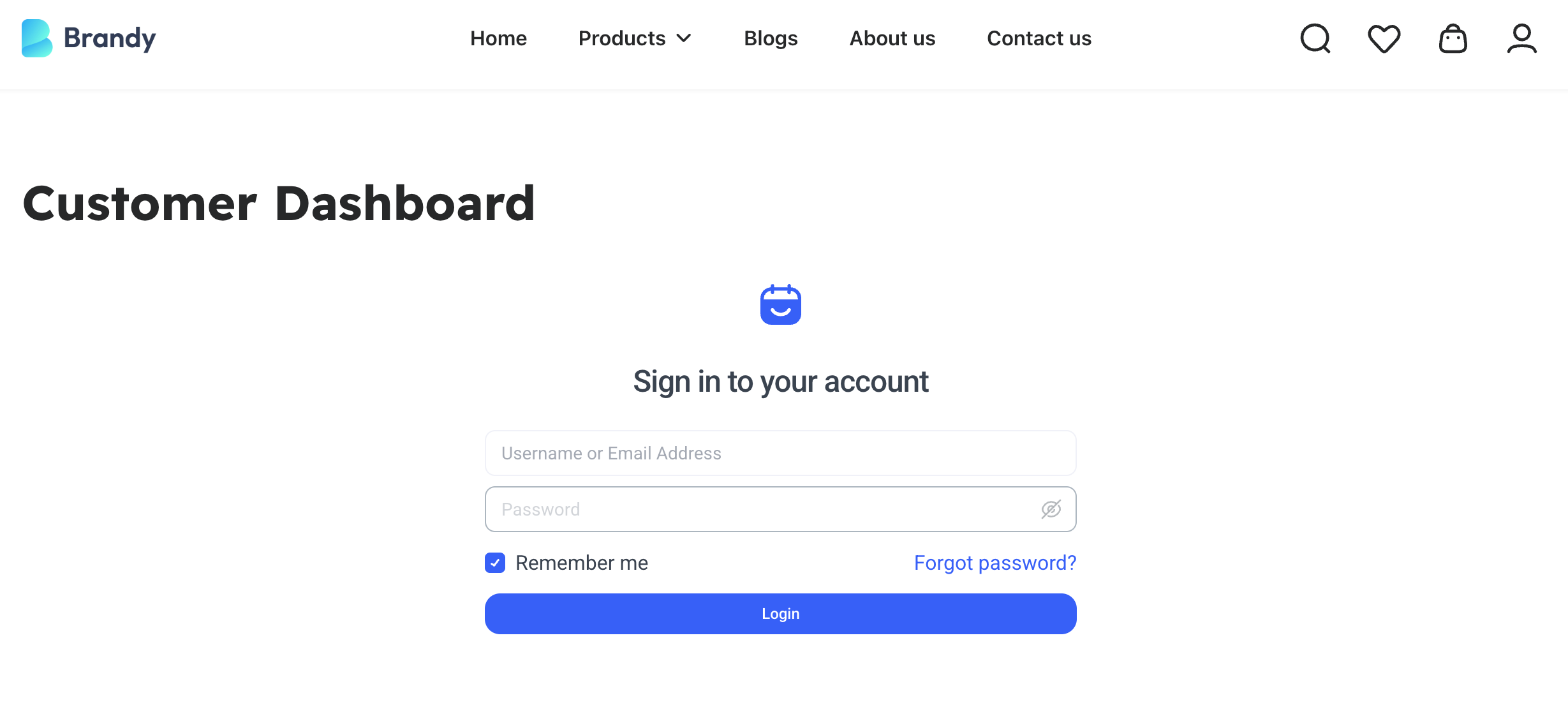
**Step 1: Log In to Your Account**
First, visit the website where customers booked your appointment.
1. Click the Login or My Account link on the website.
2. Enter the email address and password they used when booking.
3. Click Log In.
Once logged in, they’ll be taken to their Customer Dashboard.
**Step 2: View The Customer Panel**
After logging in, customers’ll see the Customer Panel, their personal space for managing appointments.
This section shows all bookings.
Here, customers can:
* Book an appointment from this panel
* View today, upcoming, and past appointments
* Check appointment details such as appointment status, price, date, time, service, and staff member
* Check the dropdown list of all services to filter appointments
* Quickly find a specific appointment using the search tool.
Everything is organized in one place for easy access. This makes it easy for customers to stay informed and avoid missed appointments.
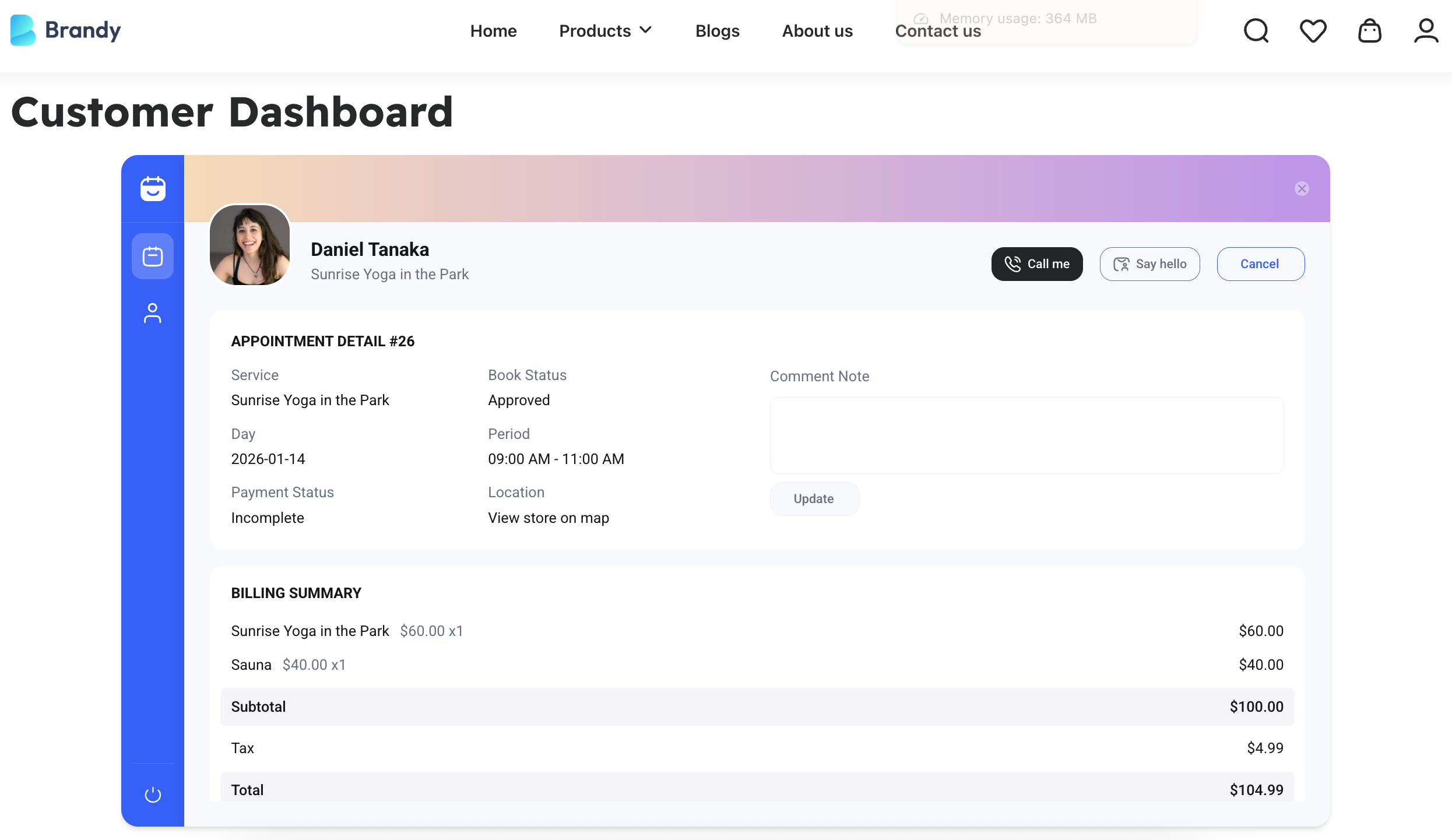
**Step 3: Manage Specific Booked Appointments**
In this section, depending on the website’s settings, customers may be able to:
* View full appointment details and billing summary of this booking
* Send a note to the booking business
* Have access to several actions: cancel appointment (if cancellation is allowed), reschedule appointment (if rescheduling is enabled)
Any changes they make are updated instantly.
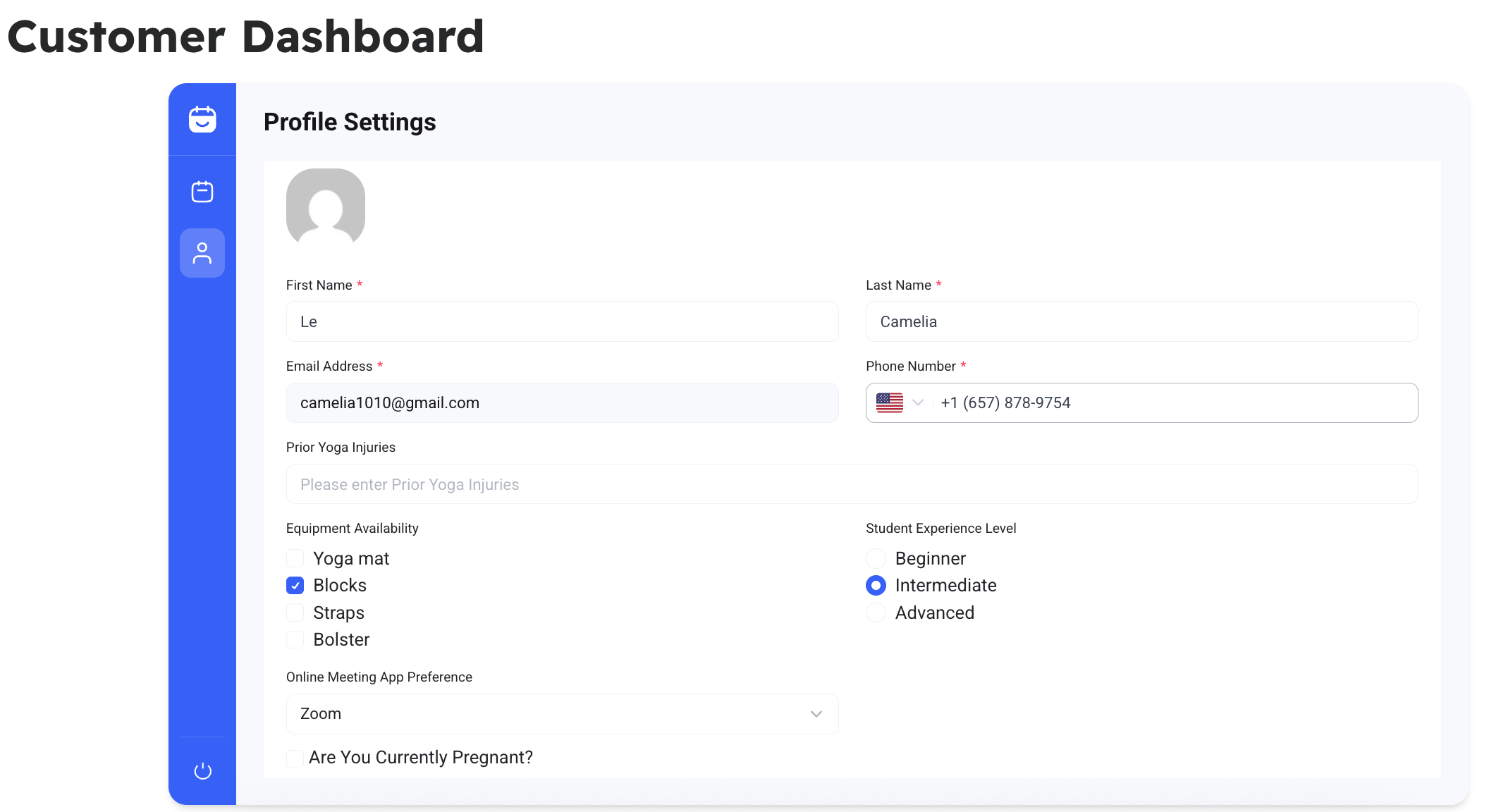
**Step 4: Update Customer’s Profile Information**
This section allows customers to manage their personal information.
Customers can update:
* Name
* Email address
* Phone number
* Other custom fields you’ve enabled
Keeping this information up to date ensures smoother communication and more accurate bookings in the future.
The Customer Panel in Bookster turns your booking system into a complete customer experience. By allowing users to manage appointments and profiles on their own, you build trust, reduce admin workload, and deliver a modern appointment scheduling solution - all inside WordPress.