> For the complete documentation index, see [llms.txt](https://docs.yaycommerce.com/bookster/llms.txt). Markdown versions of documentation pages are available by appending `.md` to page URLs; this page is available as [Markdown](https://docs.yaycommerce.com/bookster/addons/booking-template.md).
# Booking Template
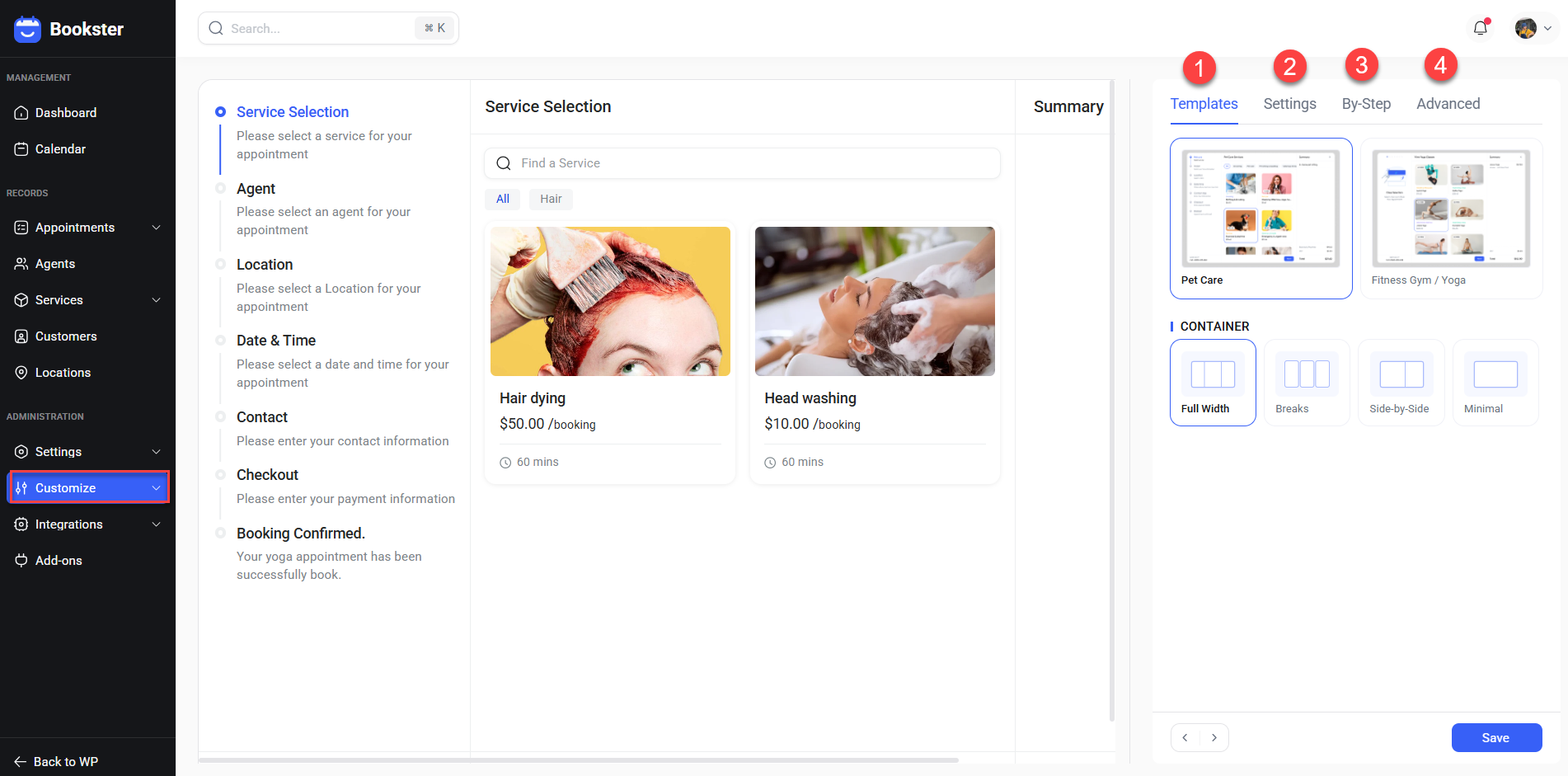
The **Customize** section allows you to design and personalize the booking form layout and visual style to match your brand and business needs.
Customize includes four main areas:
* **Templates**
* **Settings**
* **By-step**
* **Advanced**
### 1. Templates
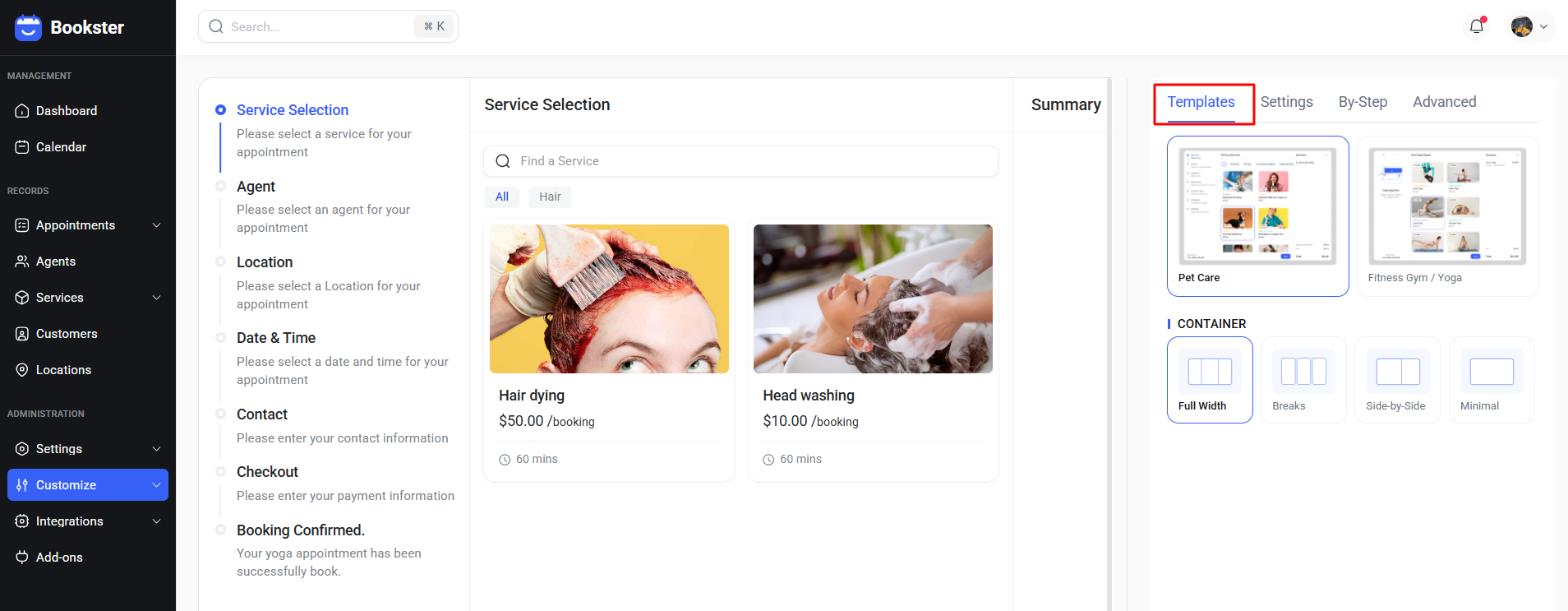
The **Templates** section allows you to choose a predefined booking form layout and container structure. These templates help you quickly build a professional booking flow suitable for different industries and use cases.
#### Template Selection
Bookster provides multiple ready-made templates, such as:
* Pet Care
* Fitness Gym / Yoga
Each template defines:
* Overall layout structure
* Content arrangement
* Visual hierarchy optimized for the selected business type
Selecting a template will instantly update the booking form preview.
#### Container Layout
The **Container** option controls how booking steps and content are displayed on the page. Available layouts include:
* **Full Width:** Displays booking steps using the full available width for a spacious and modern layout.
* **Breaks:** Separates booking steps into clear sections for better readability and focus.
* **Side-by-Side:** Displays content in parallel columns, allowing users to view multiple sections at once.
* **Minimal:** Uses a clean and compact layout with minimal visual elements.
Each container option is designed to support different user experiences and screen sizes.
### 2. Settings
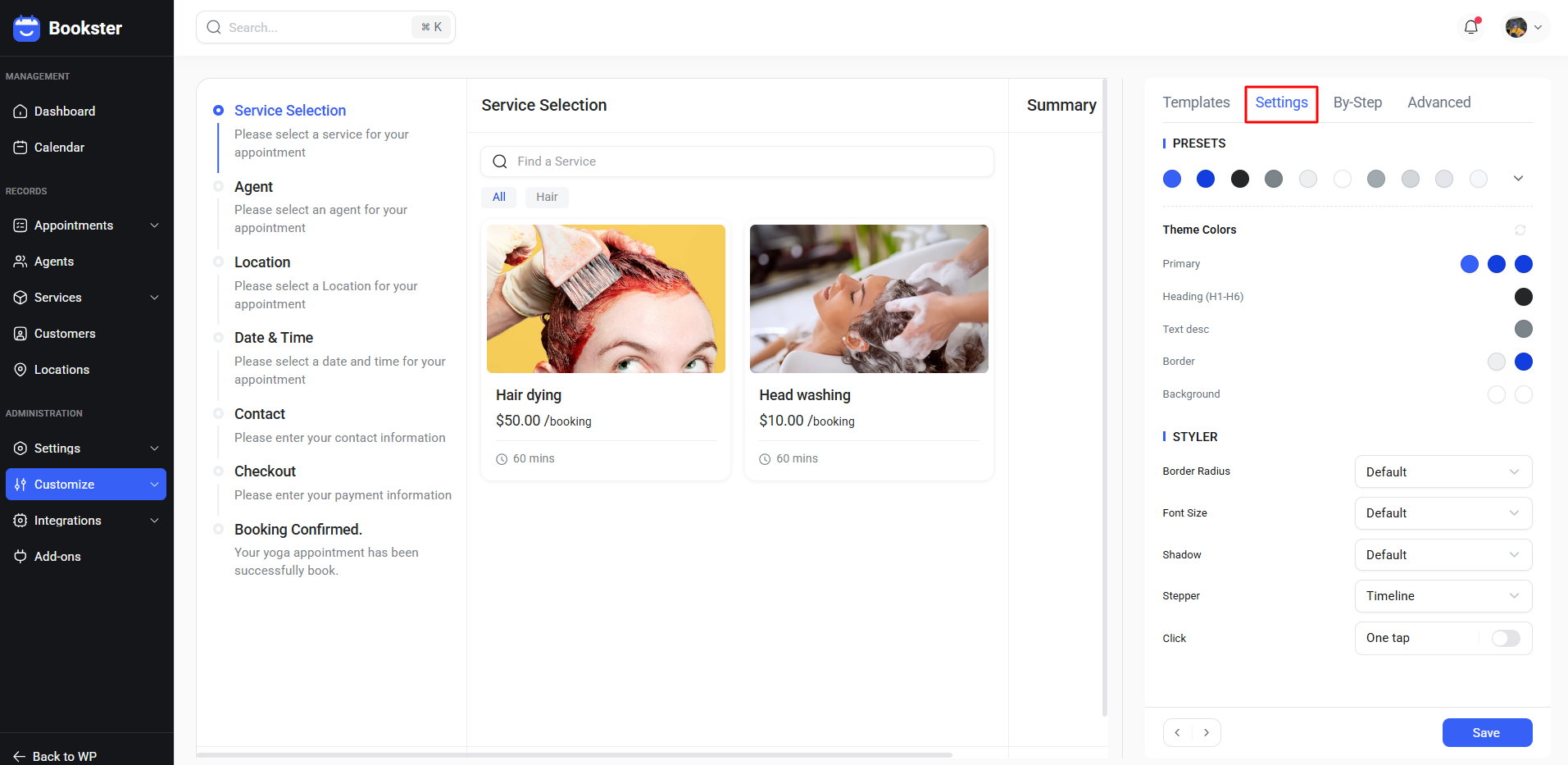
The **Settings** section allows you to fine-tune the visual appearance and interaction behavior of the booking form. Changes are reflected instantly in the preview panel.
#### Presets
**Presets** provide quick access to predefined color schemes.\
Selecting a preset will automatically apply a coordinated color palette across the booking form, ensuring visual consistency.
#### Theme Colors
The **Theme Colors** section allows you to customize individual color elements, including:
* **Primary:** Main accent color used for buttons and highlights
* **Heading (H1–H6):** Color for headings and titles
* **Text Description:** Color for body text and descriptions
* **Border:** Color of borders and separators
* **Background:** Background color of the booking form
* **More Colors:** Additional optional color adjustments
These settings allow full control over the form’s branding and readability.
#### Styler
The **Styler** section controls layout details and interaction behavior:
* **Border Radius:** Adjusts the roundness of cards, buttons, and input fields.
* **Font Size:** Sets the overall text size for better readability.
* **Shadow:** Controls the shadow depth of UI elements for a flat or elevated appearance.
* **Stepper:** Defines how booking steps are displayed (e.g. timeline style).
* **Click:** Controls user interaction behavior, such as enabling **one-tap** selection.
### 3. By-step
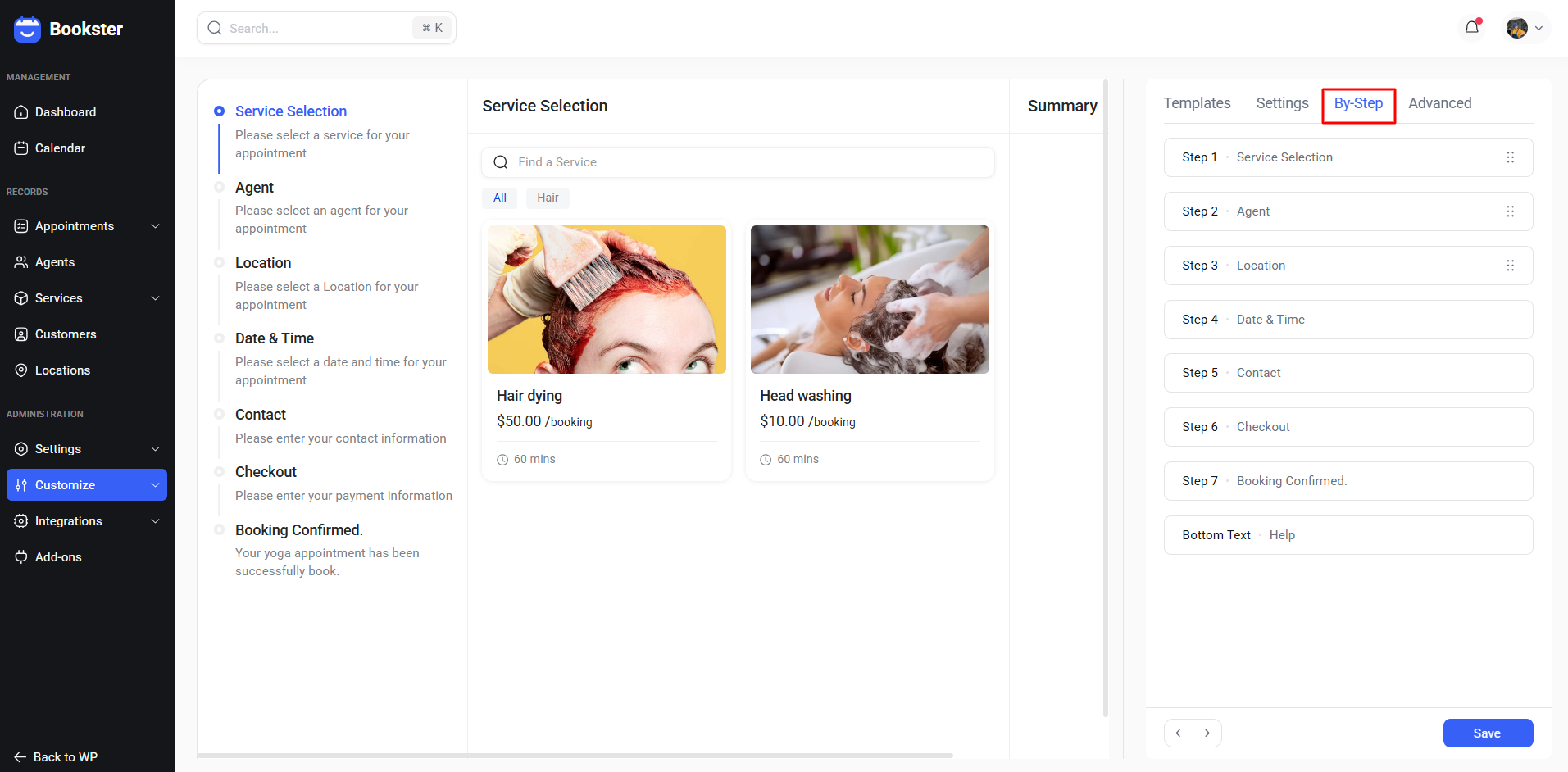
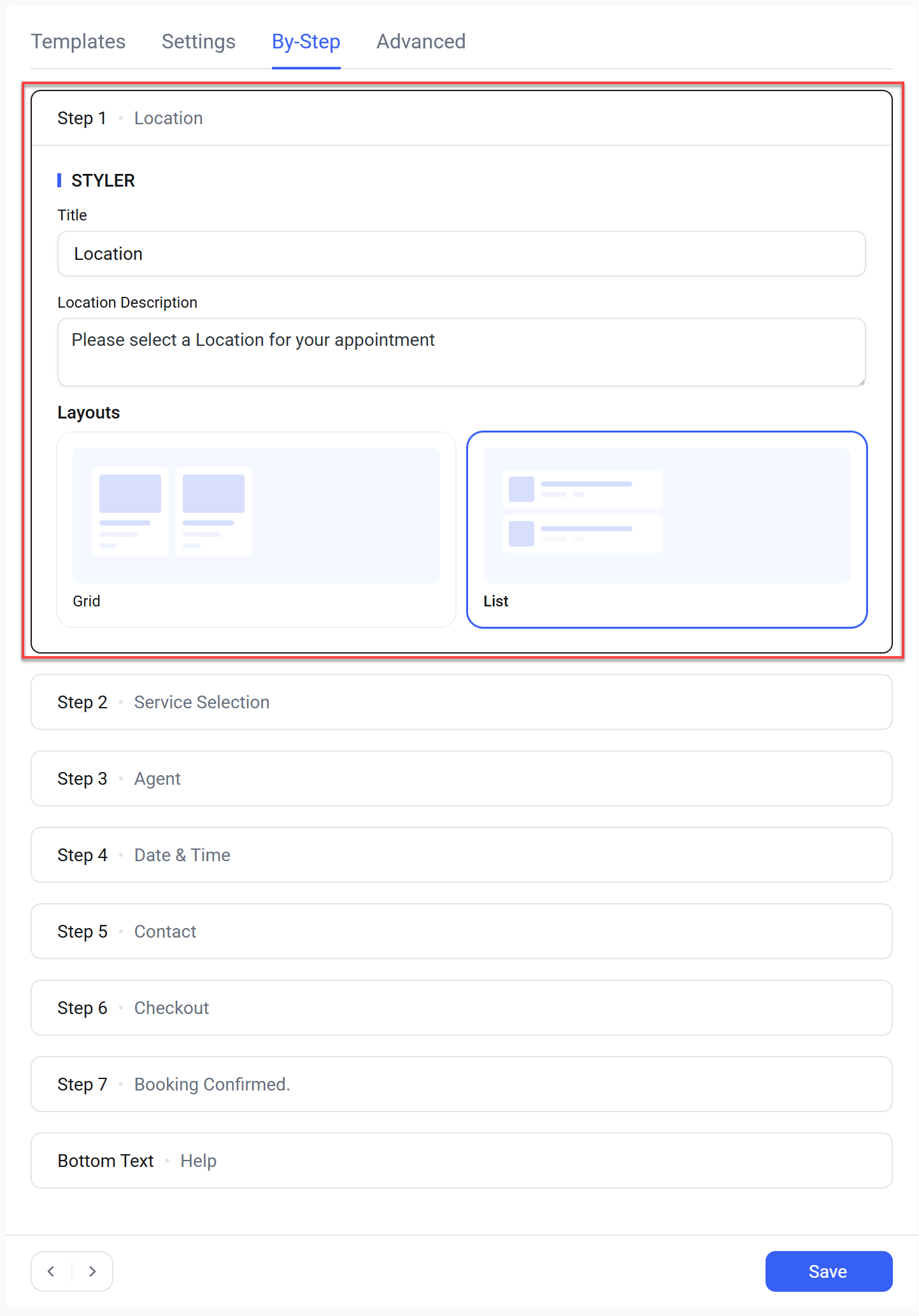
The **By-Step** section allows you to customize the content and behavior of each step in the booking flow. This gives you full control over how customers move through the booking process and what information is displayed at every stage.
The booking flow is divided into multiple steps, such as:
* Service Selection
* Agent
* Location
* Date & Time
* Contact
* Checkout
* Booking Confirmed
* Bottom Text: Help
Each step can be configured independently.
This allows you to adapt the booking flow to different business models, such as skipping unnecessary steps or simplifying the user journey.
### 4. Advanced
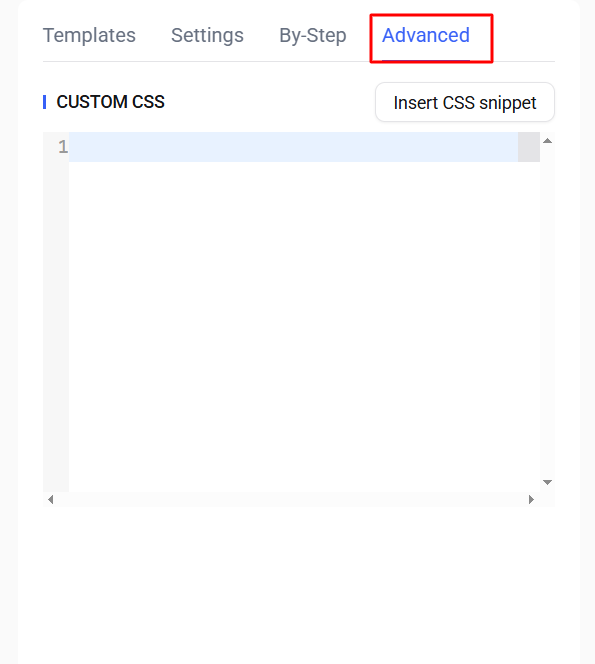
The **Advanced** section allows administrators to apply **custom CSS** to the booking form for deeper visual customization beyond the available settings and presets.
This feature is intended for advanced users or developers who want full control over the booking form’s appearance.
{% hint style="info" %}
**Tip:** You can preview each booking step by clicking the navigation arrows at the bottom of the preview panel.

{% endhint %}