> For the complete documentation index, see [llms.txt](https://docs.yaycommerce.com/bookster/llms.txt). Markdown versions of documentation pages are available by appending `.md` to page URLs; this page is available as [Markdown](https://docs.yaycommerce.com/bookster/addons/google-calendar-and-meet.md).
# Google Calendar and Meet
The Google integration allows you to sync appointments with **Google Calendar** and automatically generate **Google Meet** links for online meetings.
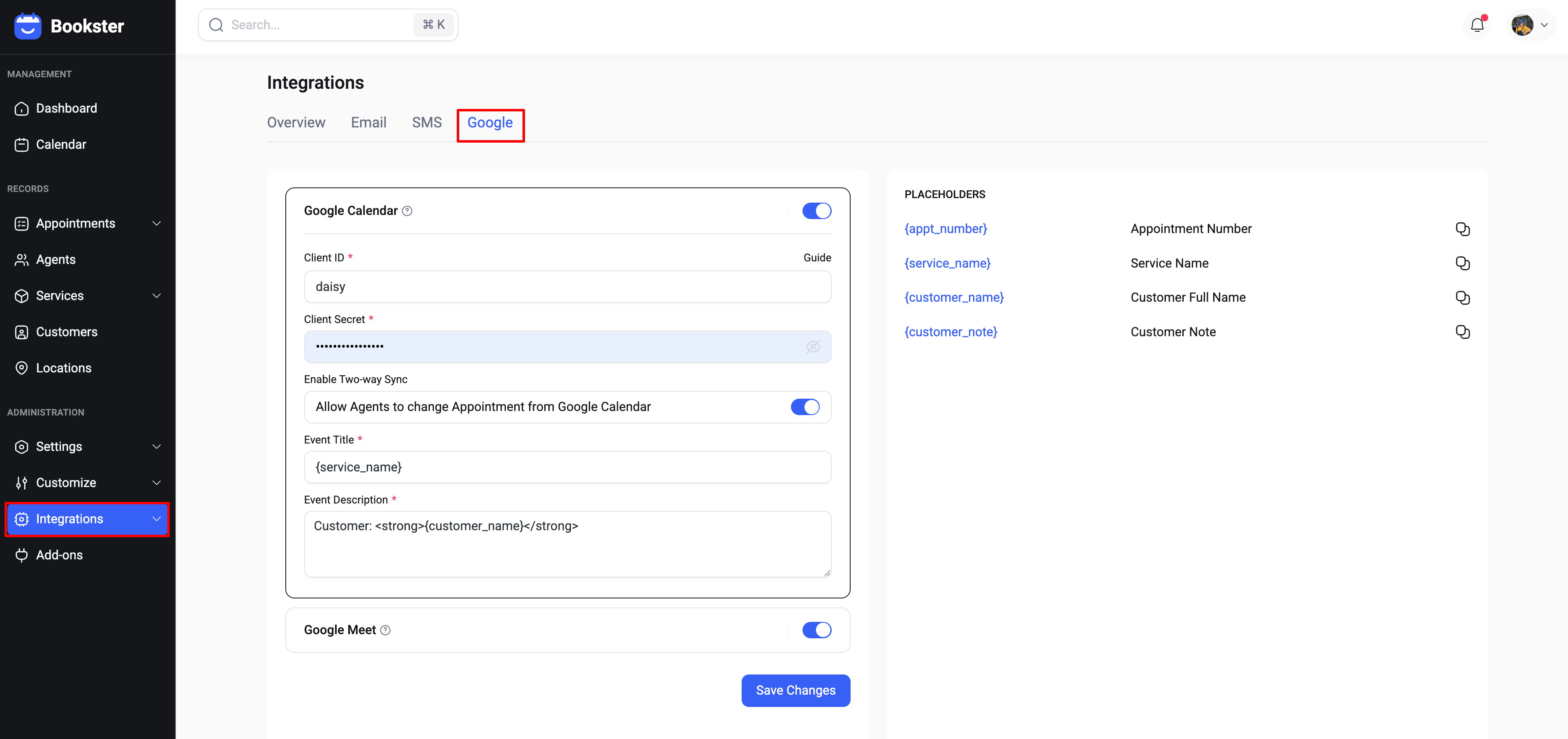
You can manage this feature from: **Integrations → Google**
### Google Calendar
Enable Google Calendar to automatically create and sync booking events to your Google Calendar.
#### Configuration
To connect Google Calendar, you need to provide OAuth credentials from Google Cloud.
The following fields are required:
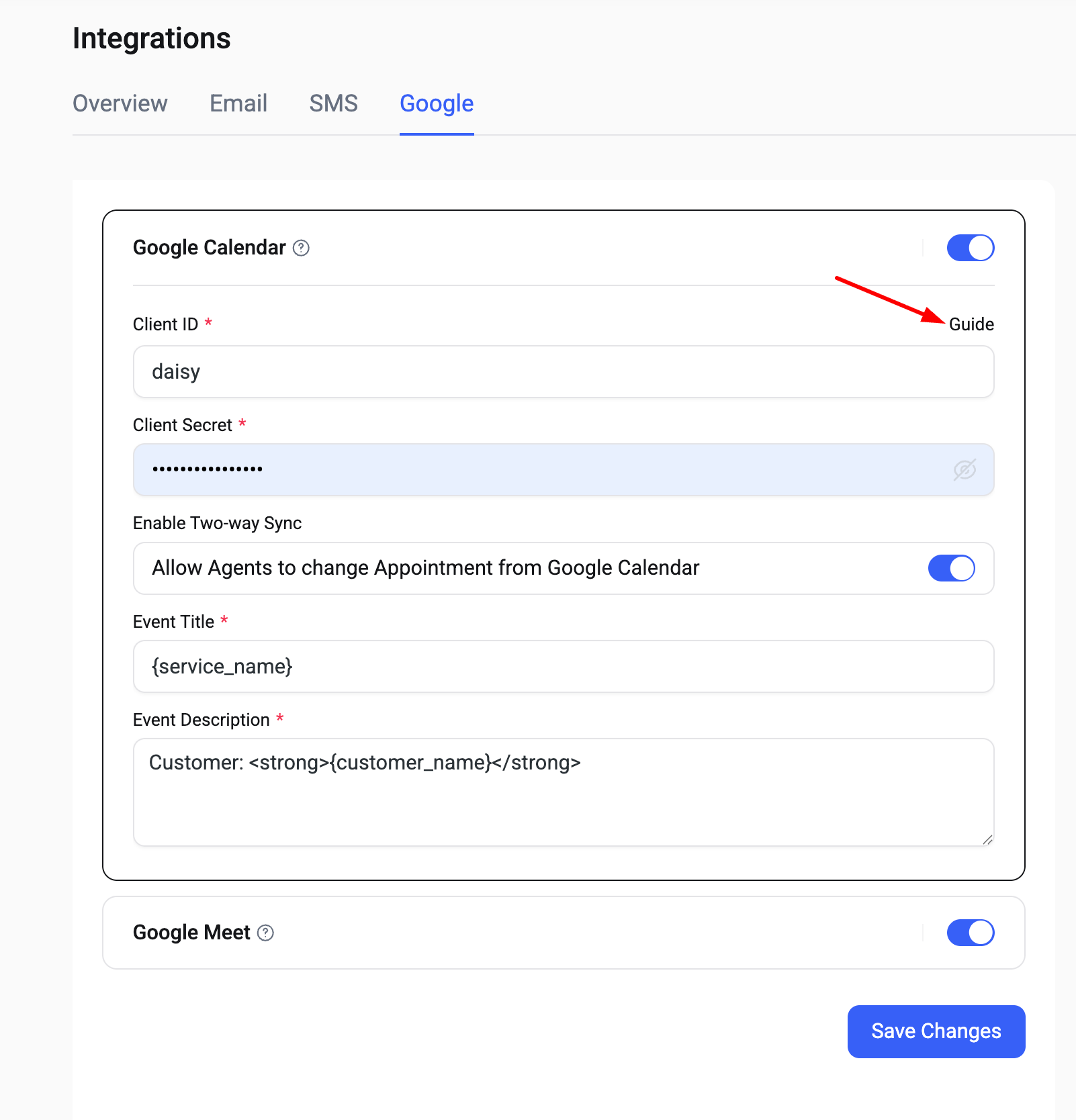
* **Client ID:** The OAuth Client ID generated from your Google Cloud project.
* **Client Secret:** The OAuth Client Secret associated with the Client ID.
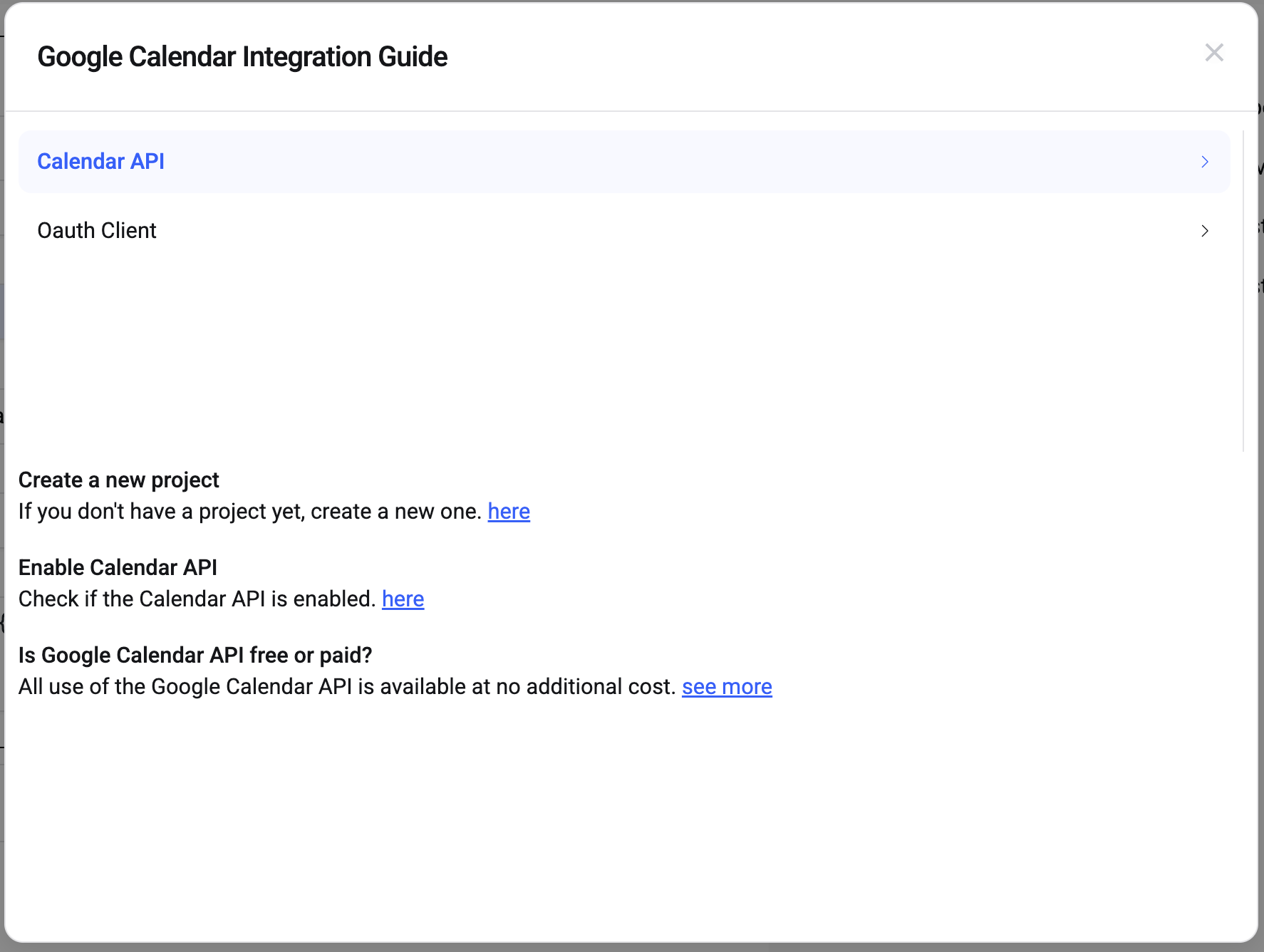
A built-in **Guide** is available to help you generate these credentials.
Click **Guide** next to Google Calendar to open the step-by-step setup instructions.
The guide helps you:
* Create a new project in Google Cloud.
* Enable the Calendar API.
* Generate OAuth Client credentials.
* Connect them to Bookster securely.
This ensures your Google Calendar integration works correctly and securely.
#### Two-way Sync
Enable **Two-way Sync** to allow changes from Google Calendar to update appointments in Bookster.
When this option is enabled:
* Agents can change appointment details directly from Google Calendar.
* Updates will be reflected back in the system.
#### Event Customization
You can control how booking events appear in Google Calendar.
* **Event Title:** Defines the event name shown in Google Calendar. You can use placeholders such as `{service_name}`.
* **Event Description:** The event details displayed in Google Calendar. Placeholders and basic HTML formatting are supported.
#### Placeholders
You can use the following placeholders in the event title and description:
* `{appt_number}` Appointment Number
* `{service_name}` Service Name
* `{customer_name}` Customer Full Name
* `{customer_note}` Customer Note
Click the copy icon to quickly insert a placeholder.
### Google Meet
Enable **Google Meet** to automatically generate a meeting link for each booking synced to Google Calendar.
When enabled, the meeting link will be attached to the calendar event.