> For the complete documentation index, see [llms.txt](https://docs.yaycommerce.com/bookster/llms.txt). Markdown versions of documentation pages are available by appending `.md` to page URLs; this page is available as [Markdown](https://docs.yaycommerce.com/bookster/addons/reminder.md).
# Reminder
The **Reminder Addon** allows you to automatically send reminder notifications before an appointment takes place.\
This addon helps reduce no-shows by reminding **customers** or **agents** about upcoming appointments.
The Reminder Addon includes **two main types of reminders**:
* **Email Reminder:** Send reminder emails
* **SMS Reminder**: Send reminder text messages
Each reminder type can be configured independently, including recipient, sending time, and message content.
### 1. Email Reminder
#### Email Reminder Overview
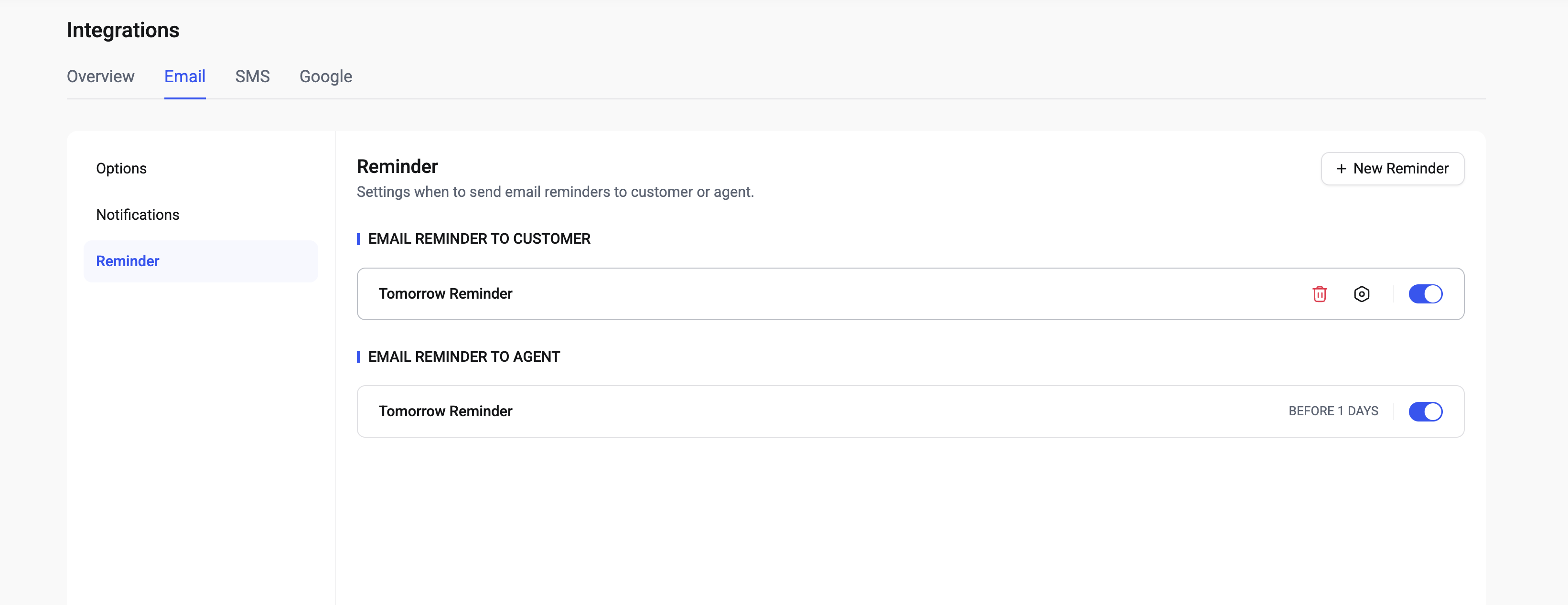
The **Reminder** screen allows you to manage all reminder notifications sent before an appointment starts.\
Here, you can view, enable, disable, and manage reminders for both **customers** and **agents**.
The reminder list is divided into two sections:
* **Email Reminder to Customer:** Displays all email reminders that will be sent to customers before their appointments.
* **Email Reminder to Agent:** Displays all email reminders that will be sent to agents, helping them prepare in advance.
Each reminder item shows:
* The reminder title
* The scheduled sending time (for example, *Before 1 day*)
* A toggle to quickly enable or disable the reminder
* Action icons to edit or delete the reminder
#### Create a New Reminder
To create a new reminder, click the **+ New Reminder** button in the top-right corner.
**Send Reminder**
* **To Customer:** Send the reminder to the customer who booked the appointment.
* **To Agent:** Send the reminder to the assigned agent.
You can select only one recipient type for each reminder.
**Reminder Title**
* **Reminder Title:** Enter a name for the reminder to help you manage it easily (for example: *Tomorrow Reminder*).
**Reminder Will Be Sent**
* **Time Before Appointment:** Choose when the reminder should be sent relative to the appointment time (for example: *1 day before appointment*).
* **Send At:** Select the exact time the reminder will be sent.
**Email Content**
* **Subject:** Define the email subject line.
* **Heading:** Set the main heading displayed in the email content.
* **Message:** Customize the reminder message sent to the recipient.\
HTML formatting and placeholders can be used to personalize the content.
**Preview & Placeholders**
* **Preview:** Displays a real-time preview of the reminder email as it will appear to the recipient.
* **Placeholders:** View and copy available placeholders to dynamically insert appointment, customer, or agent information into the subject, heading, or message.
### 2. SMS Reminder
#### SMS Reminder Overview
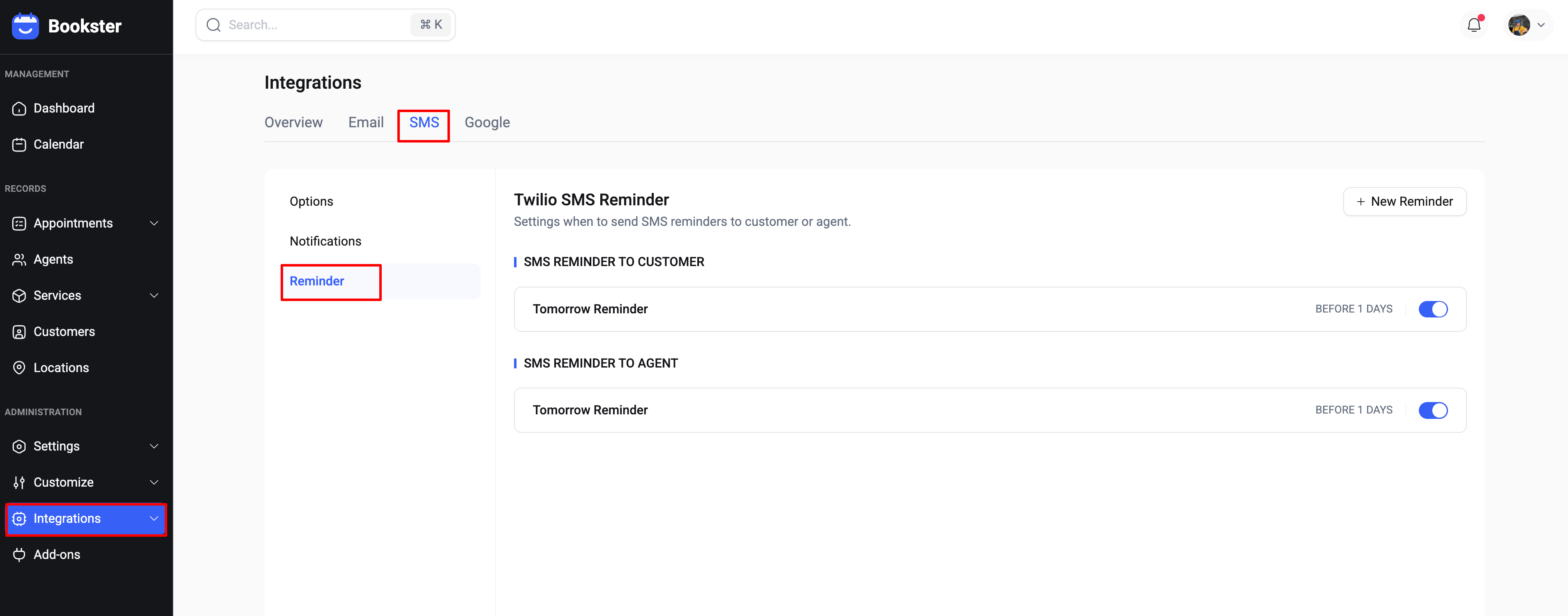
The SMS Reminder screen is similar to the Email Reminder screen and allows you to manage all SMS reminders.
On this screen, you can manage all SMS reminders used to notify customers or agents before an appointment.
SMS reminders are divided into two sections:
* **SMS Reminder to Customer**
* **SMS Reminder to Agent**
Each reminder includes:
* Reminder title
* Sending time (e.g. *1 day before appointment*)
* Enable/Disable toggle
* Action icons to edit or delete the reminder
To create a new SMS reminder, click **+ New Reminder**.
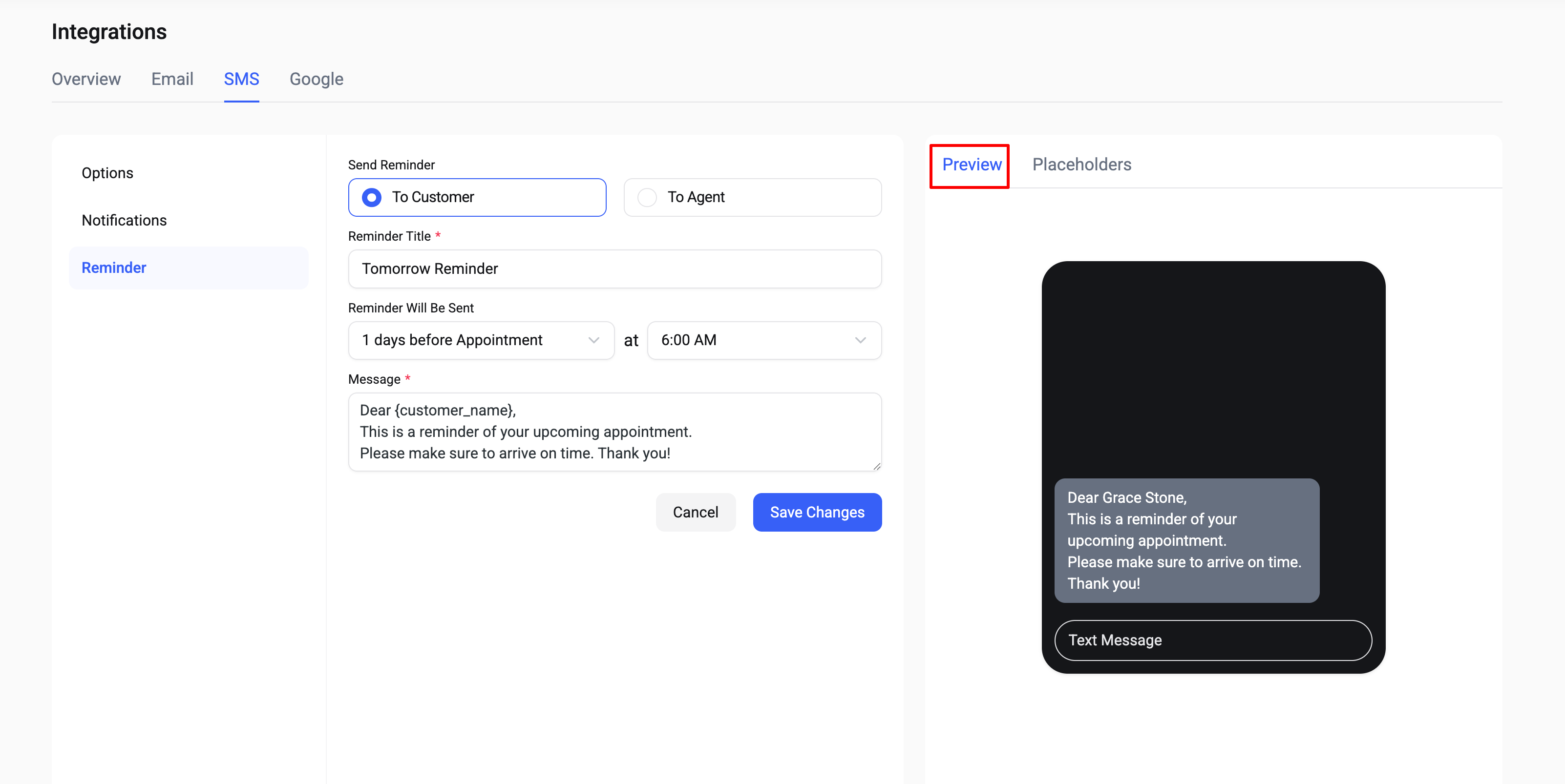
After clicking **+ New Reminder**, the SMS reminder configuration screen will appear.
#### Create a New Reminder
**Send Reminder**
Choose who will receive the SMS reminder:
* **To Customer**
* **To Agent**
**Reminder Title**
Enter a reminder title to help you identify this reminder in the dashboard.\
This title is for admin use only and will not be sent to recipients.
**Reminder Will Be Sent**
Configure when the SMS reminder will be sent:
* Select how long before the appointment
* Select the sending time
**Message**
Enter the SMS content that will be sent to the recipient.
You can use placeholders to personalize the message
**Preview & Placeholders**
* **Preview**: Shows how the SMS message will appear on a mobile device.
* **Placeholders:** View and copy available placeholders to dynamically insert message.
{% hint style="info" %}
Note: Before using SMS Reminders, you must configure and verify your [Twilio](https://docs.yaycommerce.com/bookster/~/revisions/5Kg2eXV3ylfjiZsmzOLG/addons/twilio-sms) credentials.
{% endhint %}