> For the complete documentation index, see [llms.txt](https://docs.yaycommerce.com/bookster/llms.txt). Markdown versions of documentation pages are available by appending `.md` to page URLs; this page is available as [Markdown](https://docs.yaycommerce.com/bookster/addons/discounts.md).
# Discounts
The **Discounts** feature allows you to create and manage discount campaigns using **coupon codes**, apply usage restrictions, and let customers enter coupons directly during checkout.
### 1. Discount List
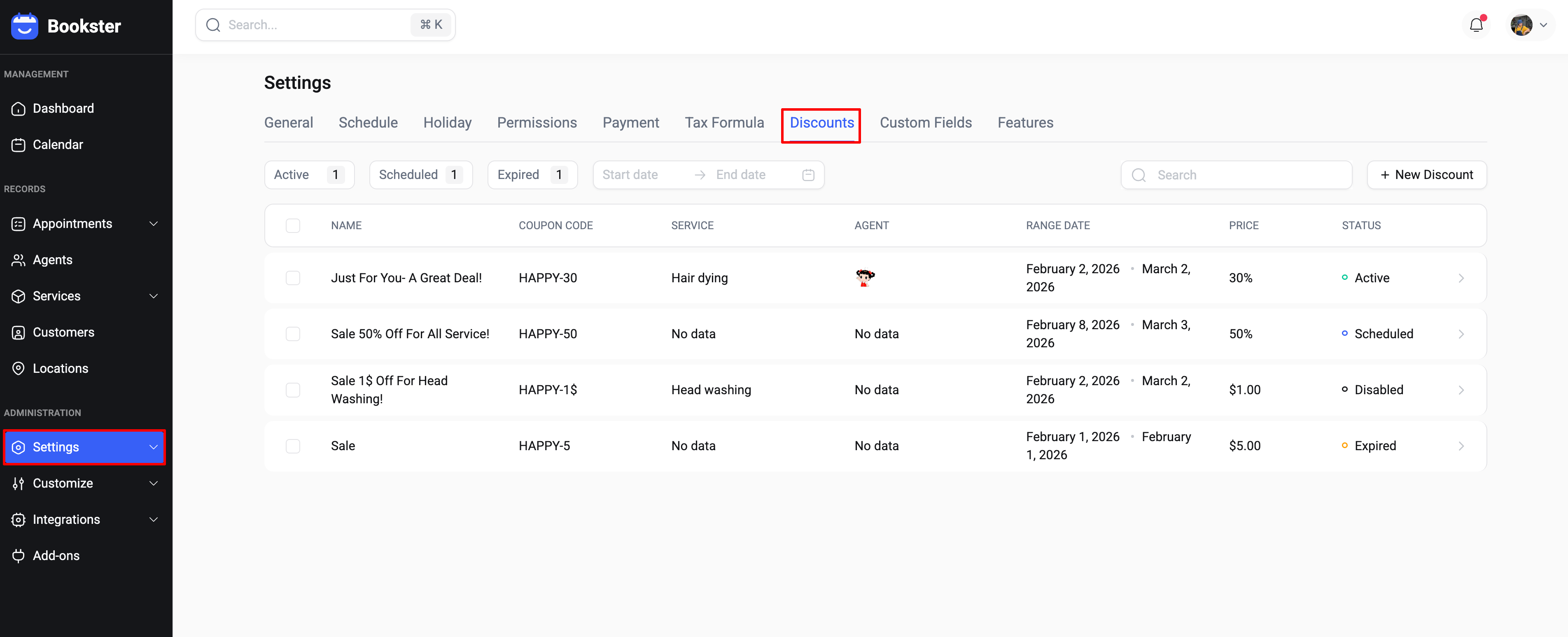
The discount list helps you manage all created discounts.
From this screen, you can:
* View discount status: **Active**, **Scheduled**, **Expired** or **Disabled.**
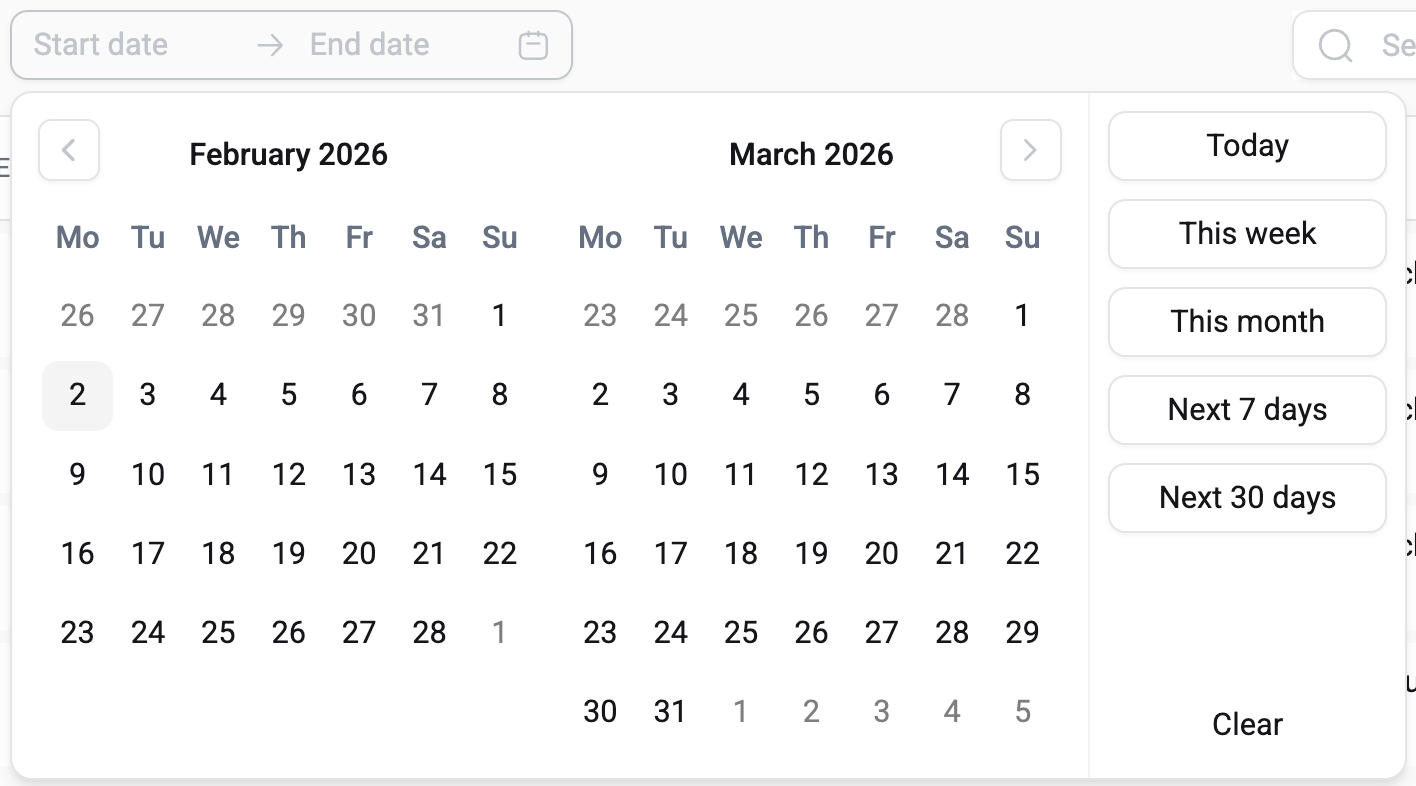
* Filter discounts by **Status** and **Date range**
* Search by **Discount name**
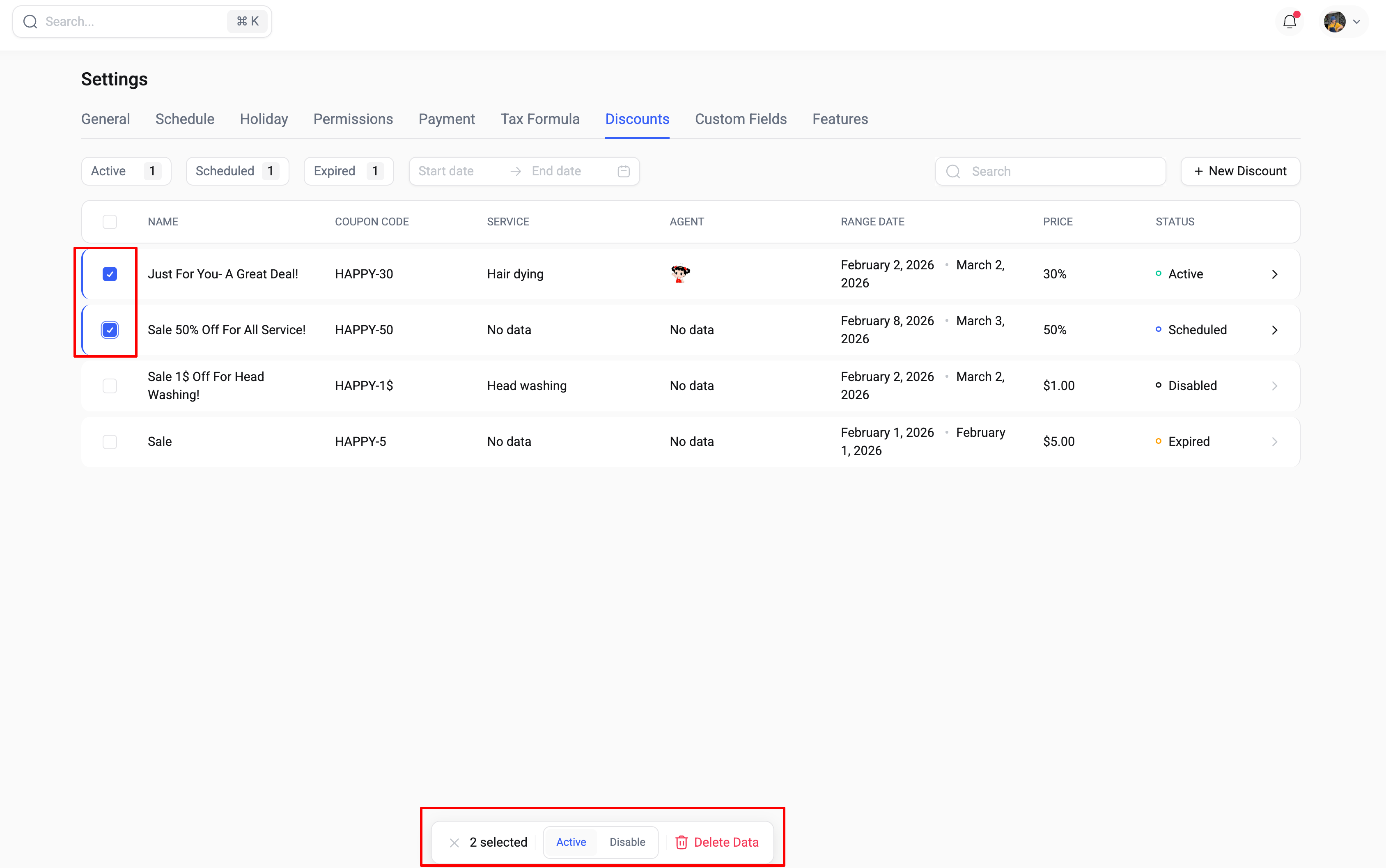
* Select one or multiple discounts to **change status** to **Active** or **Disable**
* Delete selected discounts when they are no longer needed
### 2. Add New Discount
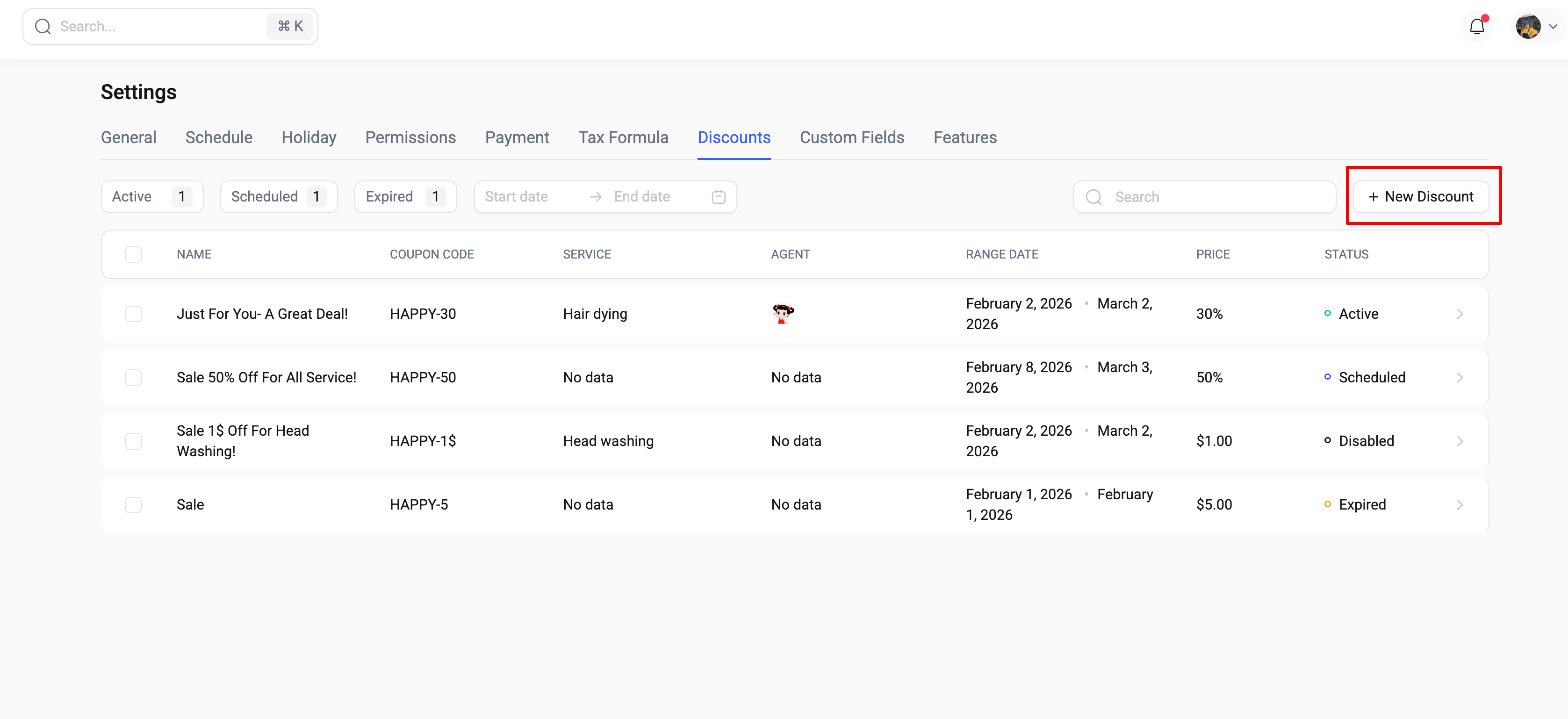
You can create a new discount by clicking the **New Discount** button.
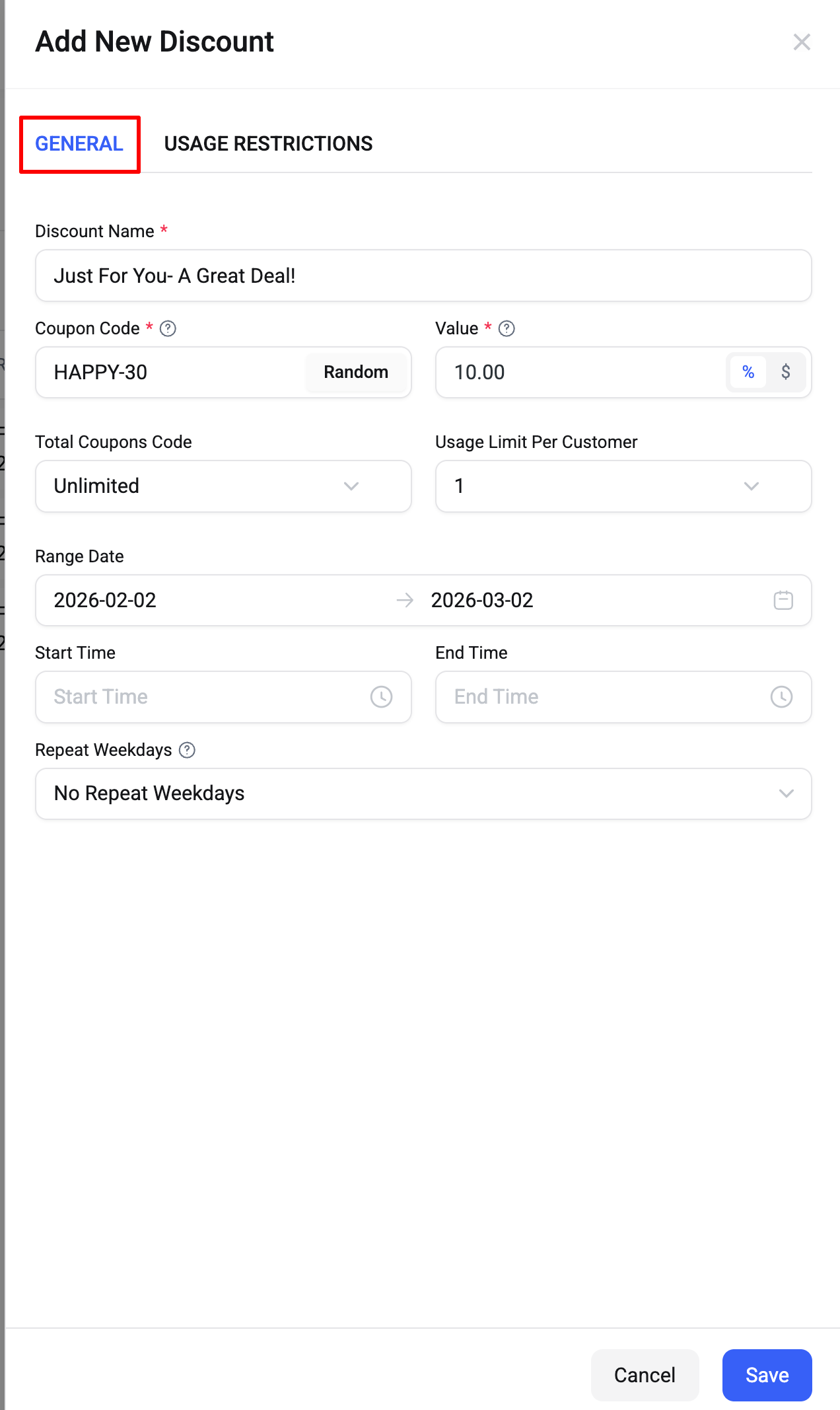
This section includes two tabs: **General** and **Usage Restrictions**, where you can configure the discount’s basic settings and apply specific conditions.
#### 2.1. General
In this section, you can set up the basic information for a discount.
* **Discount Name:** Enter the name of the discount for internal management.
* **Coupon Code:** Enter a coupon code or click **Random** to generate one automatically. Customers will use this code to apply the discount during checkout.
* **Value:** Set the discount value as a **percentage (%)** or **fixed amount ($)**.
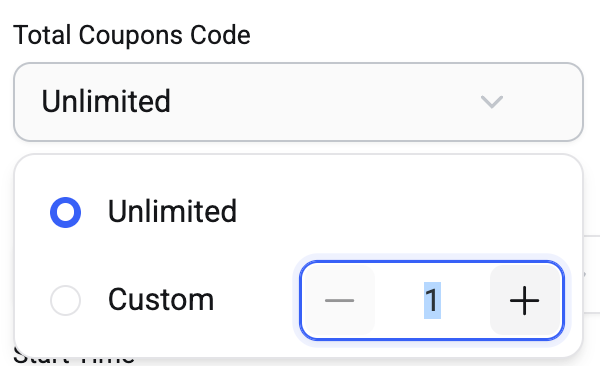
* **Total Coupons Code:** Define how many times this coupon can be used in total.
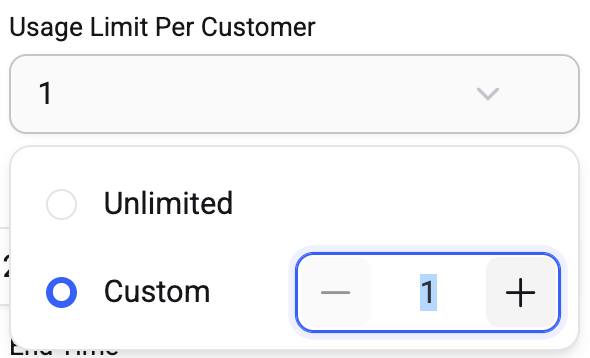
* **Usage Limit Per Customer:** Set how many times a customer can use this coupon.
* **Range Date:** Select the start and end date when the discount is valid.
* **Start Time / End Time:** Define the specific time range the discount is available within each day.
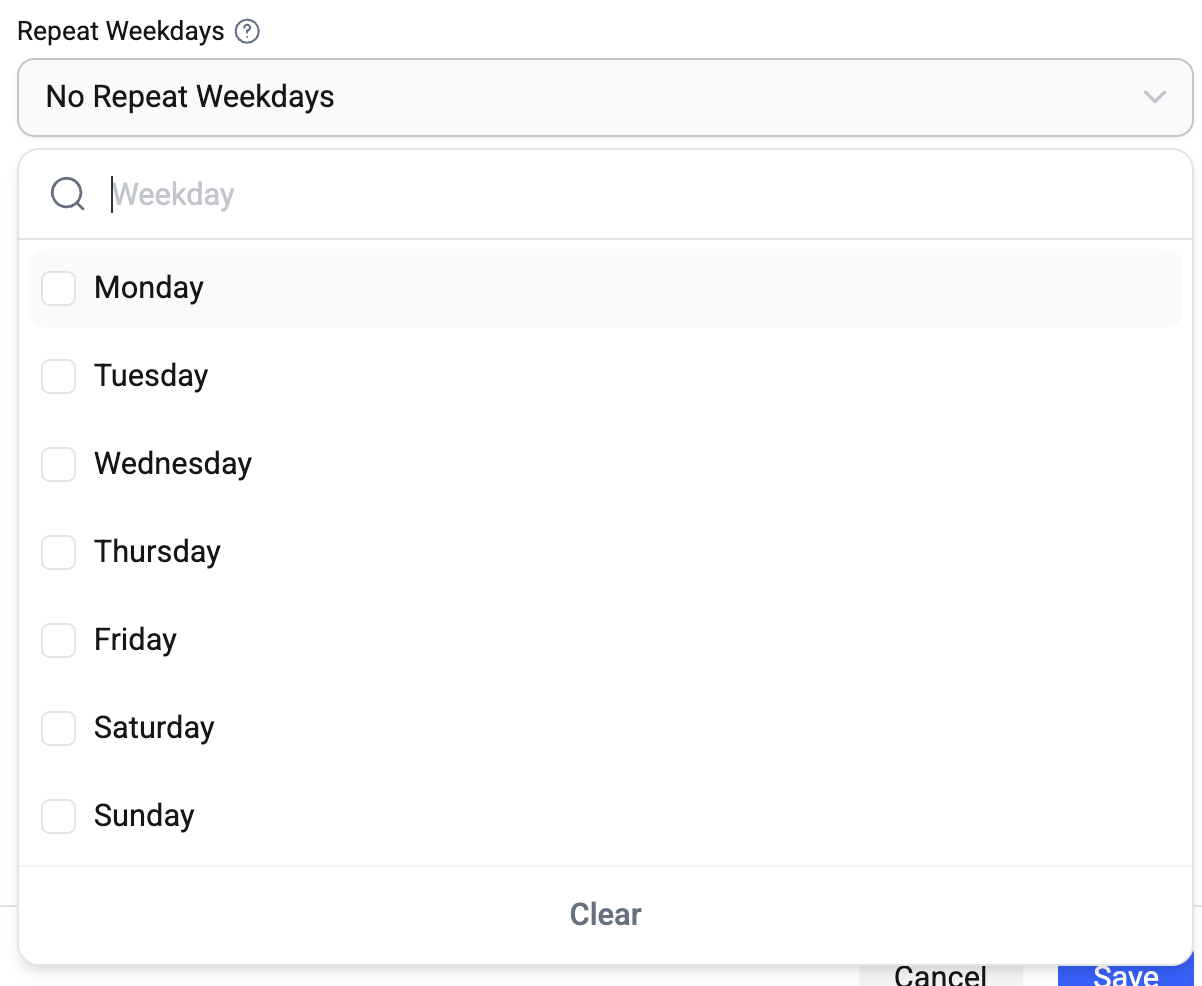
* **Repeat Weekdays:** Choose specific weekdays when the discount can be applied.
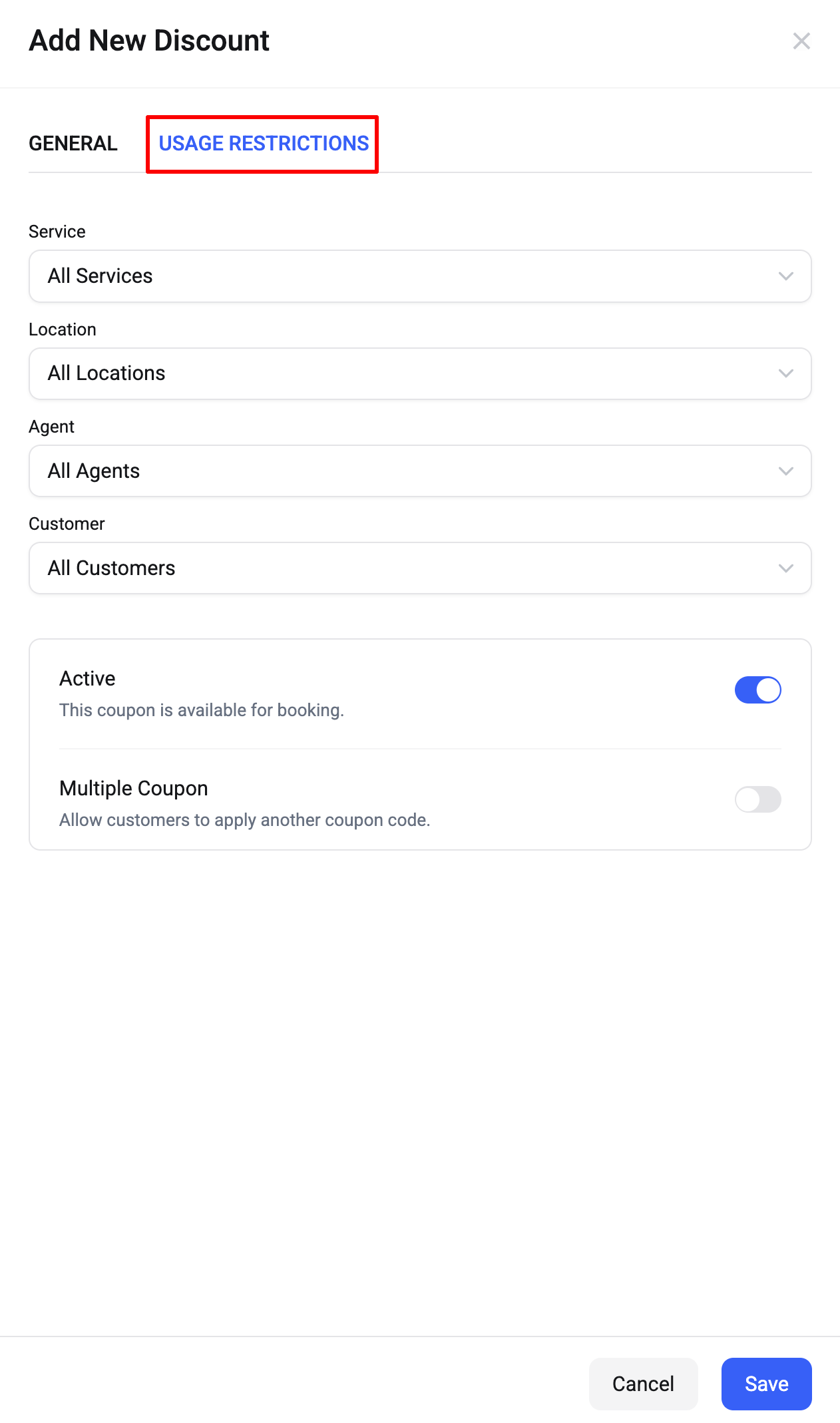
#### 2.2. Usage Restrictions
This section allows you to control where and for whom the discount can be used.
* **Service:** Select which services the discount applies to. Default: **All Services**
* **Location:** Select applicable locations. Default: **All Locations**
* **Agent:** Select applicable agents. Default: **All Agents**
* **Customer:** Select which customers can use the discount. Default: **All Customers**
* **Active:** Enable or disable the discount for booking.
* **Multiple Coupon:** Allow customers to apply this coupon together with another coupon.