# How It Works
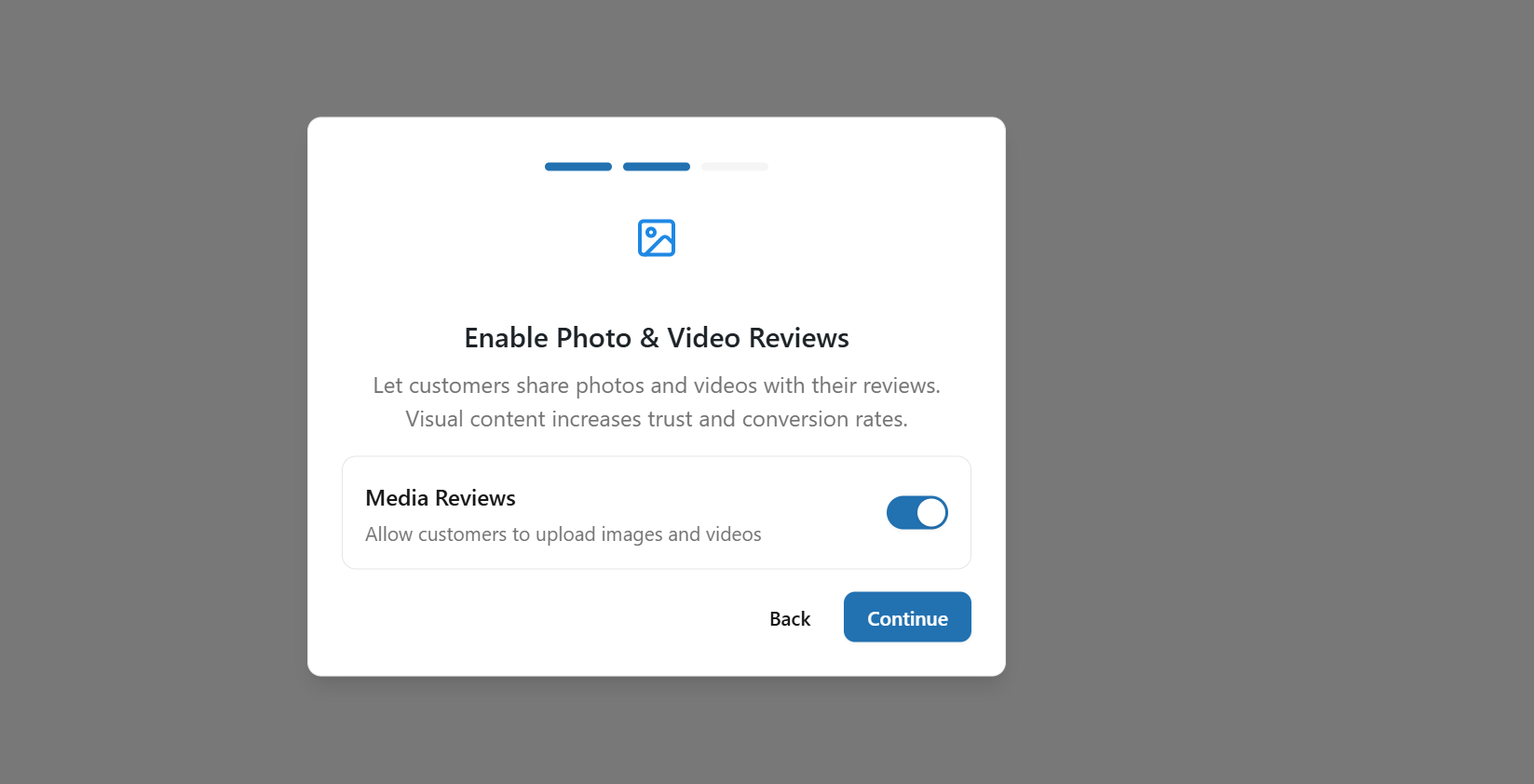
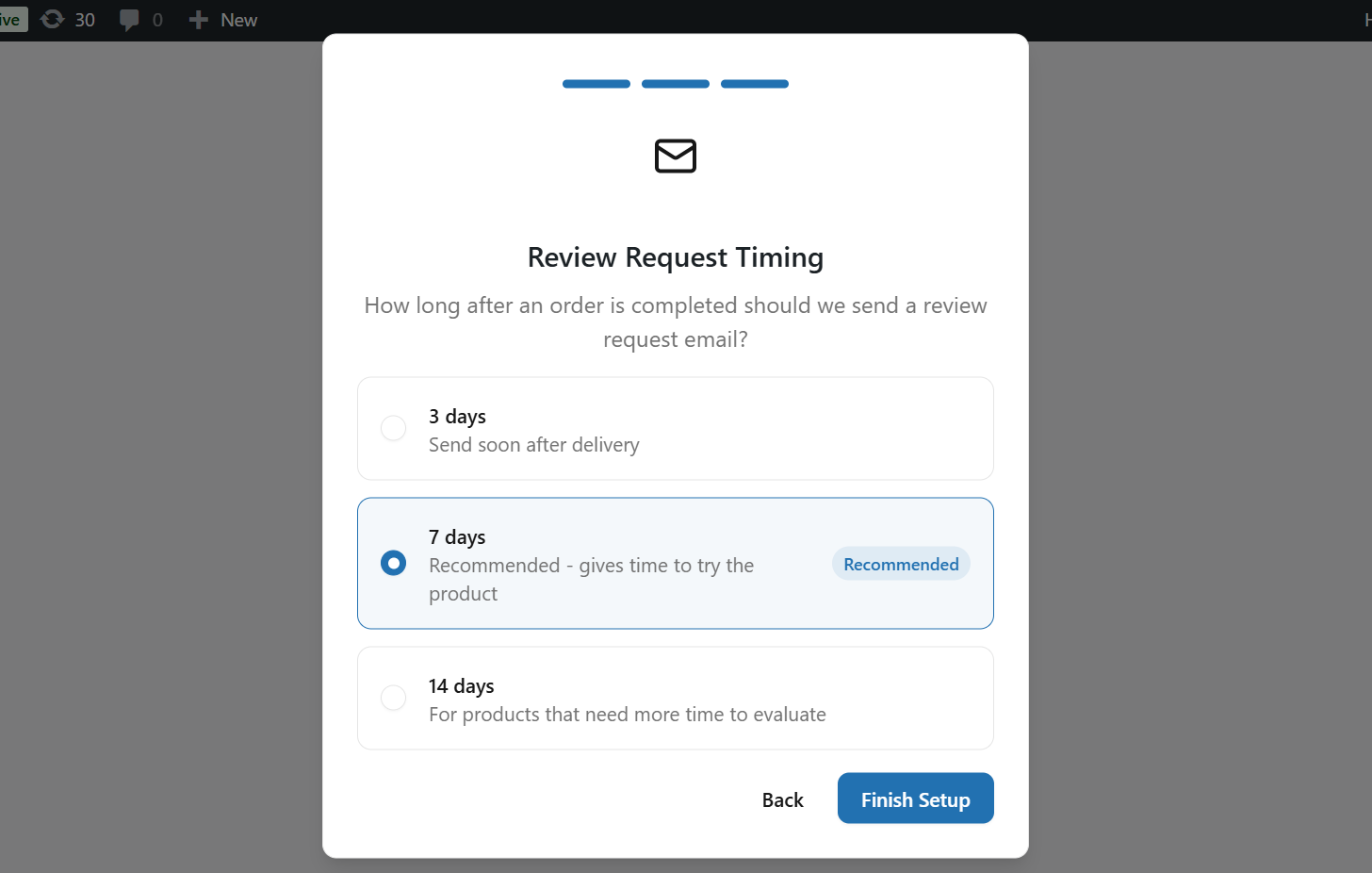
When you first install and access YayReviews, a setup wizard will appear to guide you through the initial configuration. This wizard allows you to choose whether to allow customers to upload images and videos, and to configure the Review Request Timing, including how many days after an order is completed the review request should be sent.
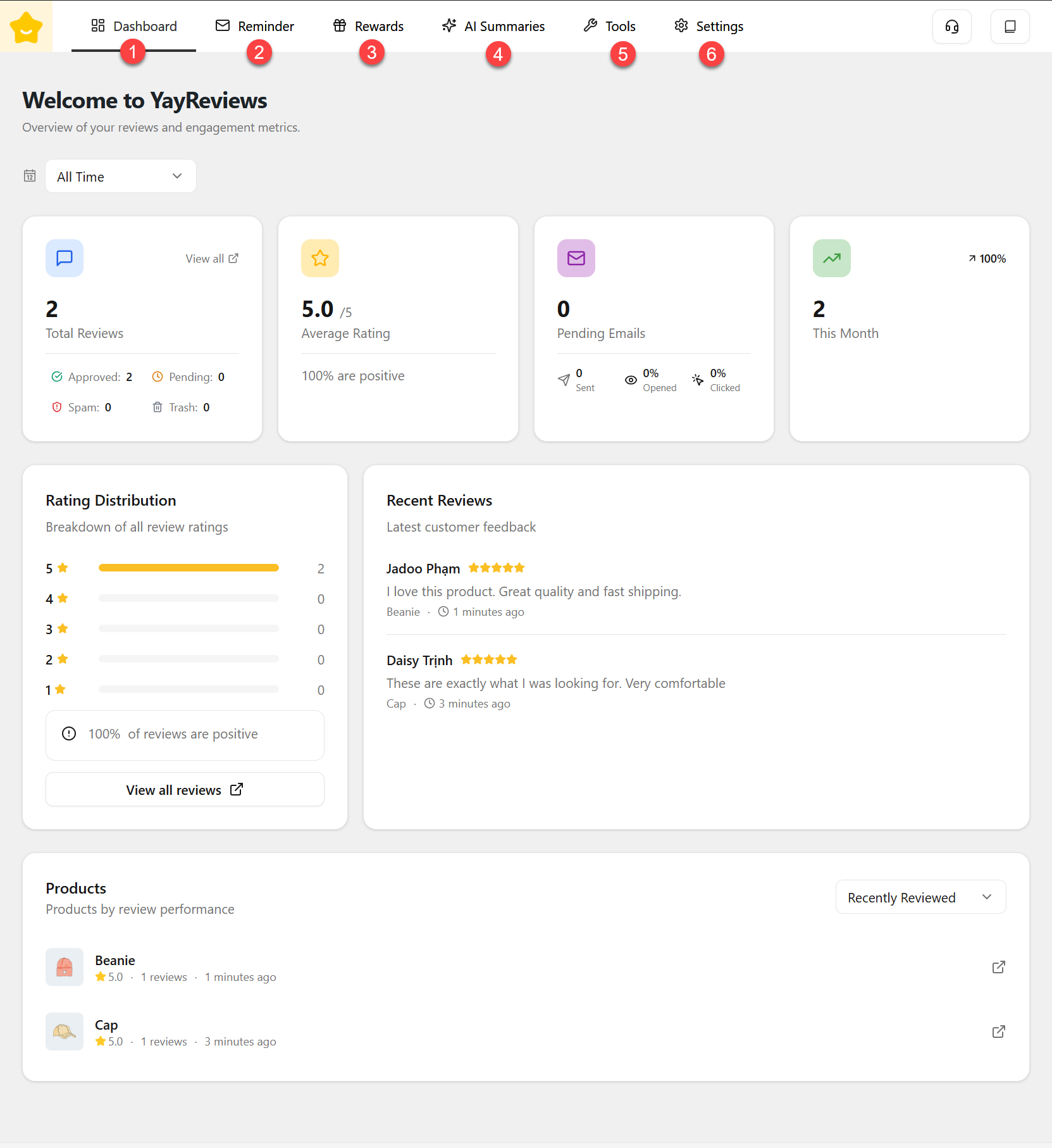
After finishing the wizard, you will see the YayReviews Dashboard screen displayed.
**(1). Dashboard:** The Dashboard gives you an overview of your review activity and engagement metrics. Here, you can quickly see total reviews, average ratings, pending review request emails, recent reviews, rating distribution, and top-reviewed products. This is the central place to monitor overall performance at a glance.
**(2). Reminder:** Allows you to add rules to configure when and how review request emails are sent, customize review request email templates, and view and manage scheduled review request emails.
**(3).** [**Reward**](https://docs.yaycommerce.com/yayreviews/~/revisions/WR2SHQmqHkqDC8U83Deh/how-it-works/reward)**:** Allows you to create and manage incentives for customers who leave reviews, customize the emails sent when customers earn rewards, and view the history of rewards sent for customer reviews.
**(4).** [**AI Summaries**](https://docs.yaycommerce.com/yayreviews/~/revisions/WR2SHQmqHkqDC8U83Deh/how-it-works/ai-summaries)**:** AI Summaries automatically analyze customer reviews and generate concise summaries. This feature helps merchants quickly understand customer sentiment and highlight key feedback without reading every individual review.
**(5).** [**Tools**](https://docs.yaycommerce.com/yayreviews/~/revisions/WR2SHQmqHkqDC8U83Deh/how-it-works/tools)**:** Allows you to import reviews from other platforms, upload and map CSV files, preview and confirm imported data, and manage import history and database records.
**(6).** [**Settings**](https://docs.yaycommerce.com/yayreviews/~/revisions/WR2SHQmqHkqDC8U83Deh/how-it-works/settings)**:** Allows you to configure your review system preferences, including review behavior, form settings, display options, rating types, media permissions, location settings, review moderation and replies, social proof features, and SEO optimization.