# Reminder
The **Reminder** section allows you to automate review request emails and manage how and when they are sent to customers. This helps ensure customers receive review requests at the right time, increasing the number of reviews collected.
#### Enable / Disable Reminder
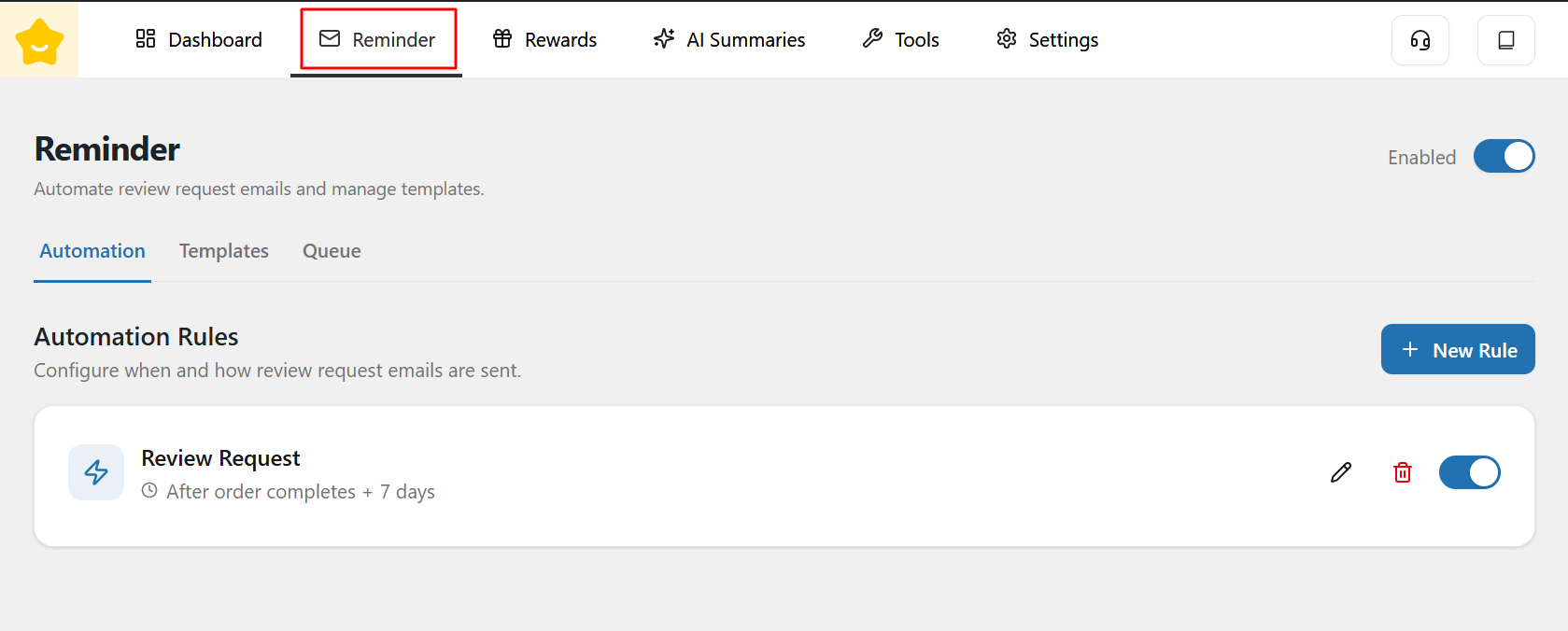
At the top of the page, you can enable or disable the entire reminder system using the **Enabled** toggle. When disabled, no review request emails will be sent.
#### **Automation**
The Automation tab is where you configure rules that control **when and how review request emails are sent**.
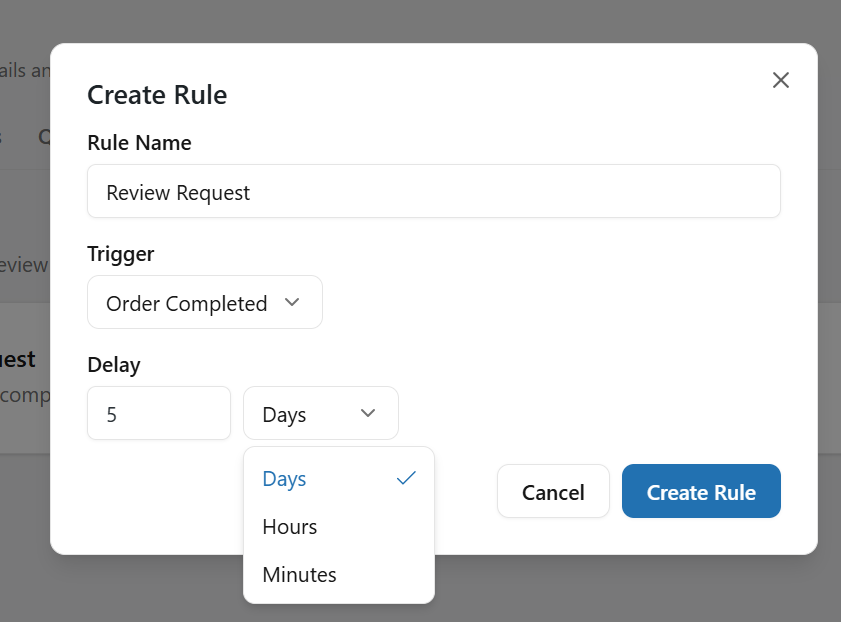
* **Automation Rules:** Each rule defines a trigger and timing for sending review request emails (for example, *after an order is completed + 7 days*).
* **New Rule:** Click **New Rule** to create a new automation rule.
* **Rule Actions**\
For each rule, you can:
* Enable or disable the rule
* Edit the rule settings
* Delete the rule if it is no longer needed
Automation rules help you fully automate the review request process without manual follow-ups.
#### Template
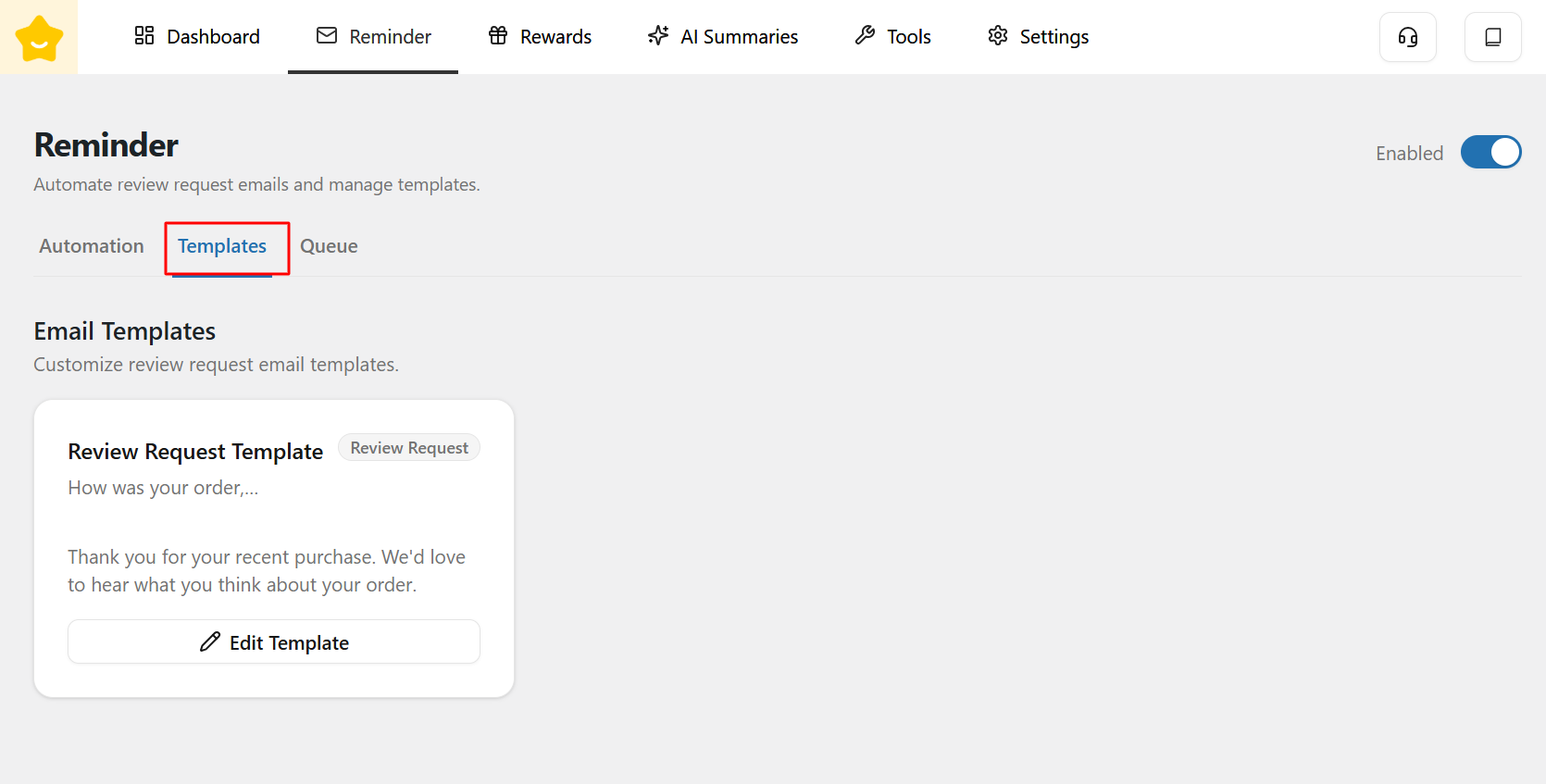
The **Templates** tab allows you to customize review request email templates.\
Each **Automation Rule** is linked to its own template, allowing you to tailor email content for different review scenarios.
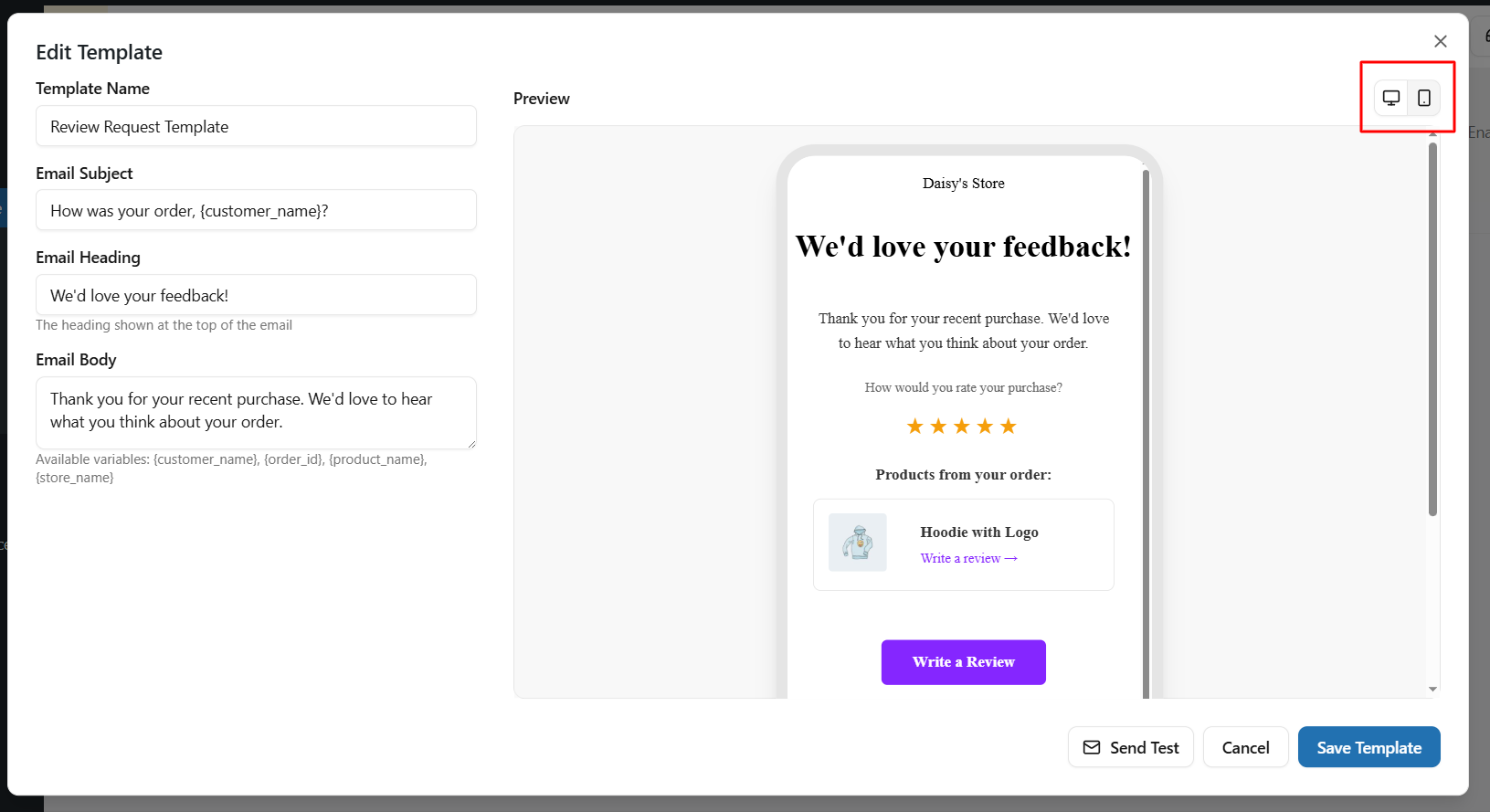
You can edit the following fields:
* **Template Name**
* **Email Subject**
* **Email Heading**
* **Email Body**
Additionally, you can use dynamic shortcodes to personalize emails, such as:
* `{customer_name}`
* `{order_id}`
* `{product_name}`
* `{store_name}`
You can also preview each email template in **desktop and mobile views** to ensure it displays correctly across different devices.
#### **Queue**
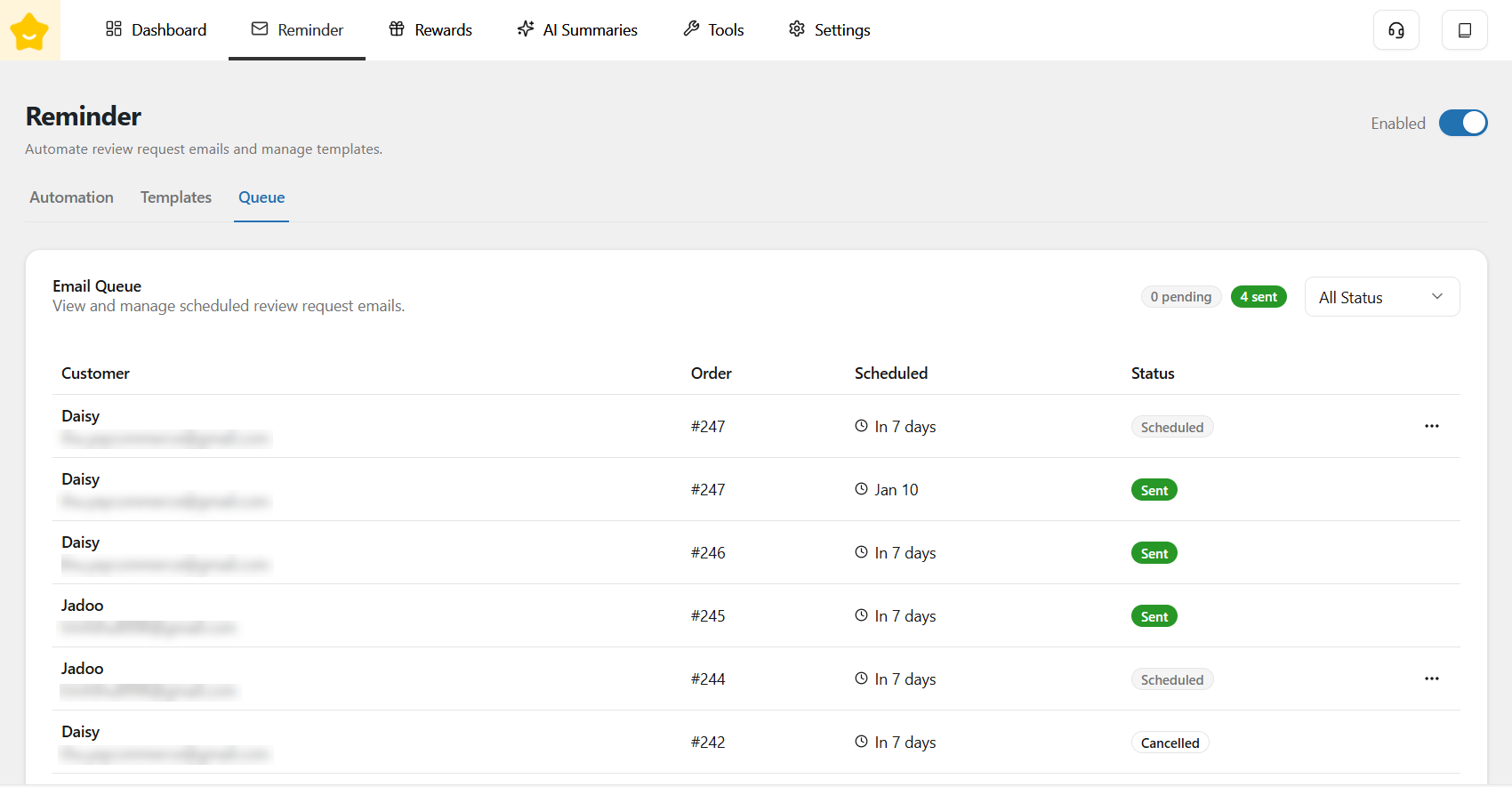
The **Queue** tab shows all scheduled review request emails.\
Here, you can view and manage scheduled review request emails, including actions such as **Send Now** or **Cancel**.
You can also filter review request emails by status to quickly find and manage specific requests.