> For the complete documentation index, see [llms.txt](https://docs.yaycommerce.com/yayreviews/llms.txt). Markdown versions of documentation pages are available by appending `.md` to page URLs; this page is available as [Markdown](https://docs.yaycommerce.com/yayreviews/settings/display.md).
# Display
The **Display** settings in YayReviews control how customer reviews appear on your WooCommerce product pages - from the overall layout (list, grid, masonry, or slider) to smaller details like reviewer avatars, verified purchase badges, and review dates. This page walks through every option available under **YayReviews → Settings → Display**, so you can tailor the review experience to match your store's design and brand voice.
### **Review List Layout**
Choose how reviews are displayed on product pages. Available layouts include:
#### **List**
Displays reviews in a vertical list format, making it easy to read detailed feedback.
#### **Grid**
Shows reviews in a grid layout for a more compact view.
#### **Masonry**
Arranges reviews in a dynamic, Pinterest-style layout.
#### **Slider**
Displays reviews in a sliding carousel.
### Verified Purchase
#### **Show Verified Badge**
Display a "Verified Owner" badge on reviews from customers who purchased the product, synced automatically with WooCommerce order data. This builds trust and social proof by showing shoppers which reviews come from confirmed buyers.
#### Reviewer Name
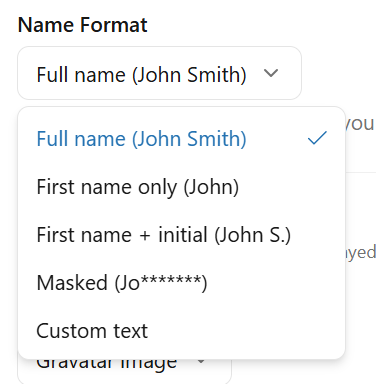
**Name Format**: Choose how reviewer names are displayed.
#### Reviewer Avatar
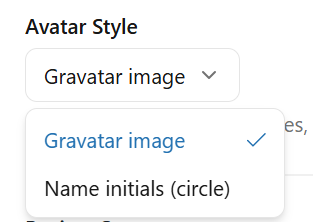
**Avatar Style**: Display reviewer avatars using Gravatar images or Name initials (circle)
#### Review Count
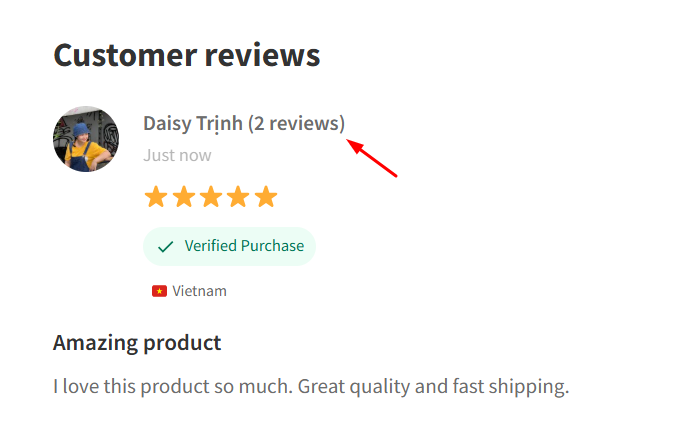
**Show Review Count**: Display the total number of reviews next to the reviewer’s name.
#### Anonymous Reviews
* **Allow Anonymous Reviews**: Let customers submit reviews anonymously.
* **Anonymous Display Text**: Customize the name shown for anonymous reviewers.
#### Date Display
* **Show Review Date**: Display when the review was posted.
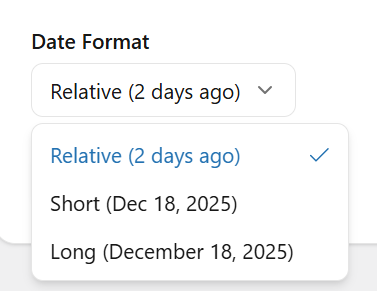
* **Date Format**: Choose how the review date is displayed.
#### Review Anchor Button
**Show Anchor Button:** When enabled, a floating button will appear on supported product pages. Clicking the button automatically scrolls customers to the reviews section or review form, making it easier for them to read or submit reviews.
---
# Agent Instructions
This documentation is published with GitBook. GitBook is the documentation platform designed so that both humans and AI agents can read, navigate, and reason over technical content effectively. Learn more at gitbook.com.
## Querying This Documentation
If you need additional information that is not directly available in this page, you can query the documentation dynamically by asking a question.
Perform an HTTP GET request on the current page URL with the `ask` query parameter, and the optional `goal` query parameter:
```
GET https://docs.yaycommerce.com/yayreviews/settings/display.md?ask=&goal=
```
`ask` is the immediate question: it should be specific, self-contained, and written in natural language.
`goal` is optional and describes the broader end goal you are ultimately trying to accomplish on behalf of the user. GitBook uses it to tailor the answer towards what is most useful for that goal.
The response will contain a direct answer to the question and relevant excerpts and sources from the documentation.
Use this mechanism when the answer is not explicitly present in the current page, you need clarification or additional context, or you want to retrieve related documentation sections.