> For the complete documentation index, see [llms.txt](https://docs.yaycommerce.com/brandy-theme/llms.txt). Markdown versions of documentation pages are available by appending `.md` to page URLs; this page is available as [Markdown](https://docs.yaycommerce.com/brandy-theme/features/footer-builder.md).
# Footer Builder
## Foot**er Settings Overview**
The **"Footer Configuration"** section of the Brandy theme provides various settings to customize the global footer of your website. The options allow you to manage the global footer template, select and customize individual footers, and create new footers.
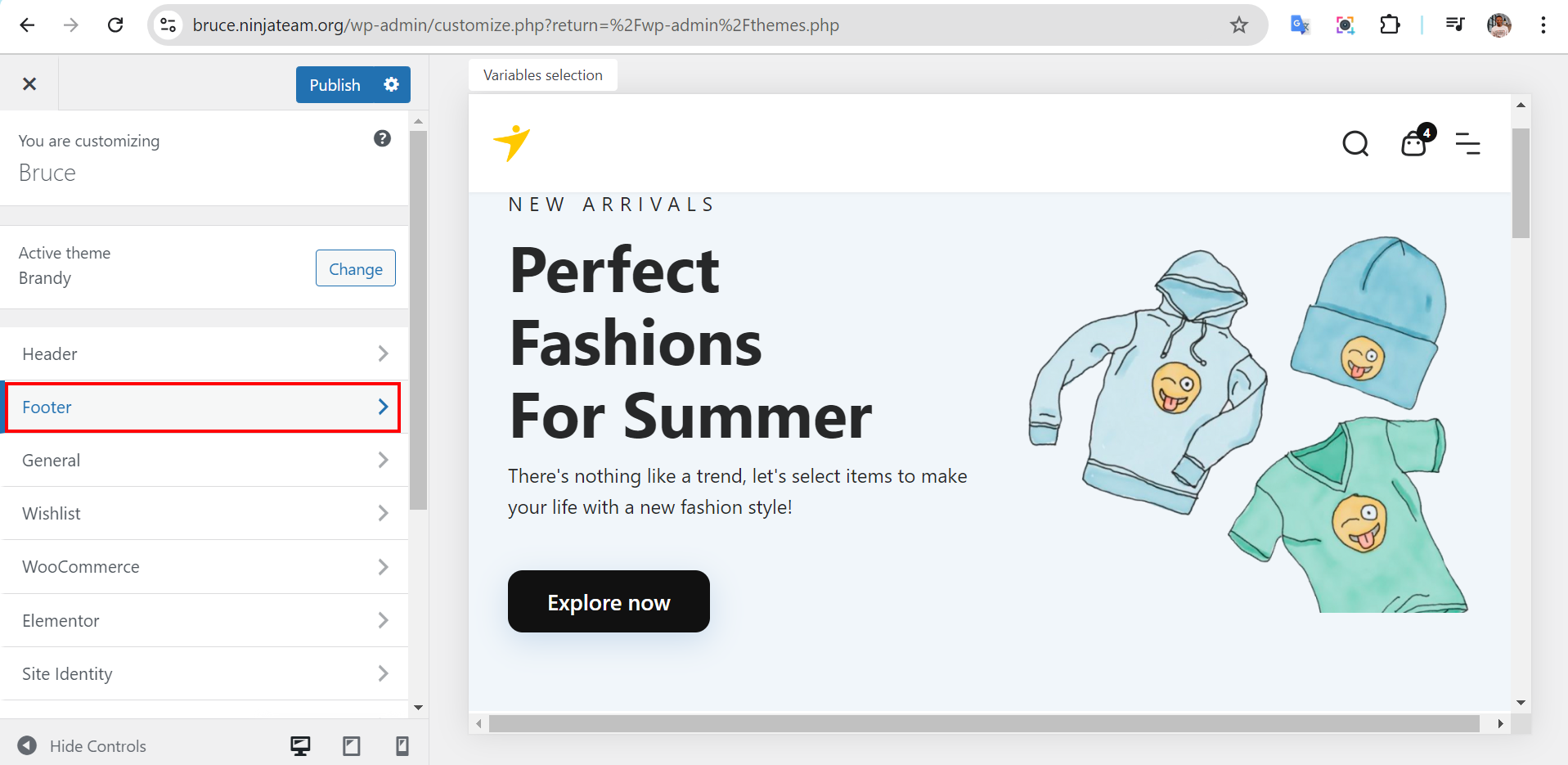
To start setting your website's Footer with Brandy theme options, navigate through **Appearance** > **Customizer** > **Footer.**
Selecting the footer opens up the various footer settings available for your customization
Below are the detailed functionalities and options available in this section:
#### **Footer Overviews**
#### **1. Global Footer**
* **Field:** Global footer
* Dropdown to select the default footer template for the website.
#### **2. Your Footers**
* **Field:** Your footers
* Lists the available footer templates.
* Allows you to choose a footer for preview and customization.
#### **3. Create New Footer**
* **Button:** Create new footer
* Provides an option to create a new footer template.
* Clicking this button initiates the process to design and customize a new footer layout.
#### **4. Footer Layout Editor**
* **Editor:** Footer layout editor
* Displays the current layout of the selected footer template.
* Allows you to add, remove, or customize various footer elements.
* Example elements in the layout: **Logo, HTML, List link, Newsletter, Socials, Copyright etc.**
* Clicking on an empty area wth the **"+"** icon will bring up the element list and searching
**Publish:** Make sure to click "Publish" after making changes to save and apply the updated footer settings.